Set up your company and add your first employee
Create your account, start the free trial, fill in your company details and add the first person you pay.
Last updated
This guide takes you from sign-up to a company that is ready for its first payroll run. It takes about ten minutes. Have your company's tax ID (TIC) and Social Insurance employer number to hand.
Create your account
Sign up
On the Sign up page, enter your company name, your first and last name, your work email and a password of at least 6 characters. Accept the terms of service and click Create account.
Verify your email
We send you a link that works for 24 hours. Click it, then click Sign in. If the email doesn't arrive, use Resend email.
Add a payment method
The first time you sign in, Prolley asks you to Add a payment method. Enter your billing details, choose monthly or yearly billing and how many employees to pay for, then add a card or SEPA debit on Stripe's secure page. Click Get started to begin.
Next, a short notice explains that the tax year settings (the rates and thresholds Prolley calculates with) are yours to manage. Click Review tax year settings to look at them now, or I understand to carry on.
Follow the checklist on your dashboard
Until you create your first run, the Dashboard shows a Set up payroll card with four steps. Each one has a button that takes you to the right screen, and a Show me link for a guided tour on desktop.
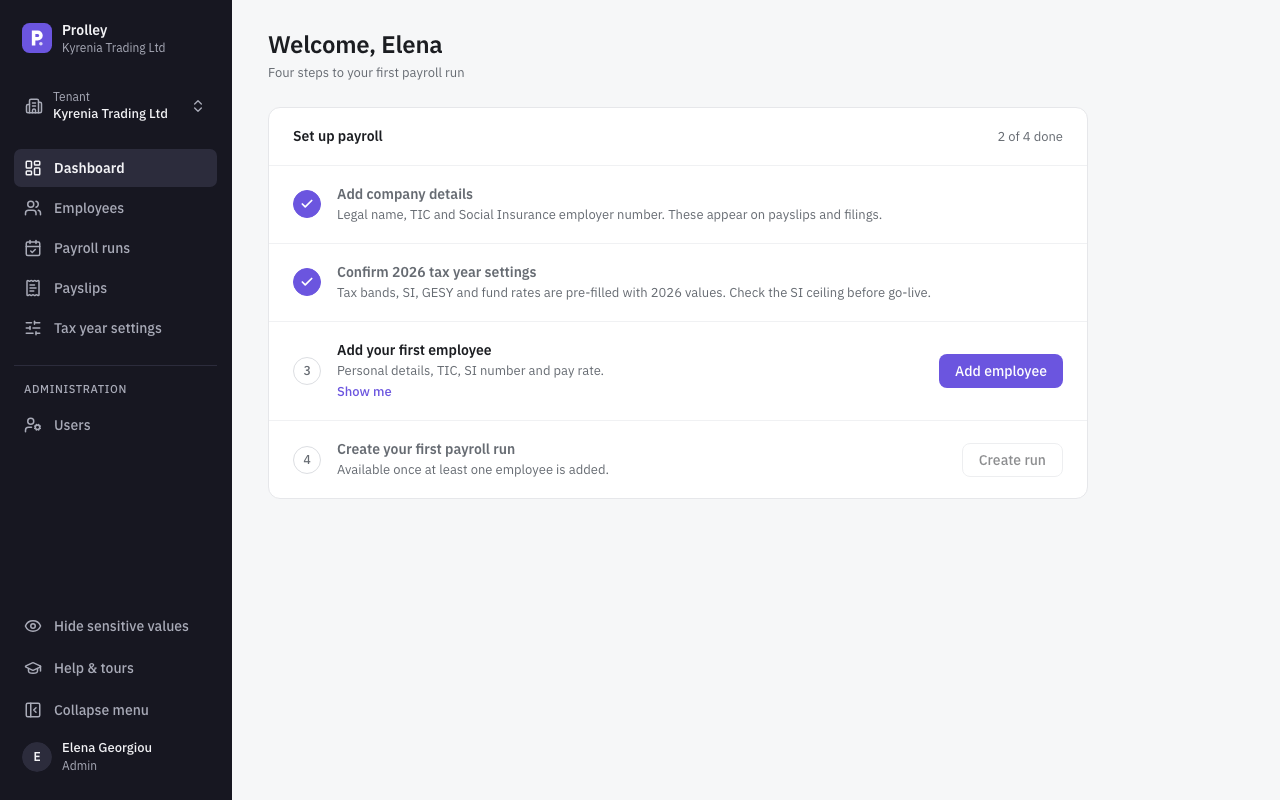
Add company details
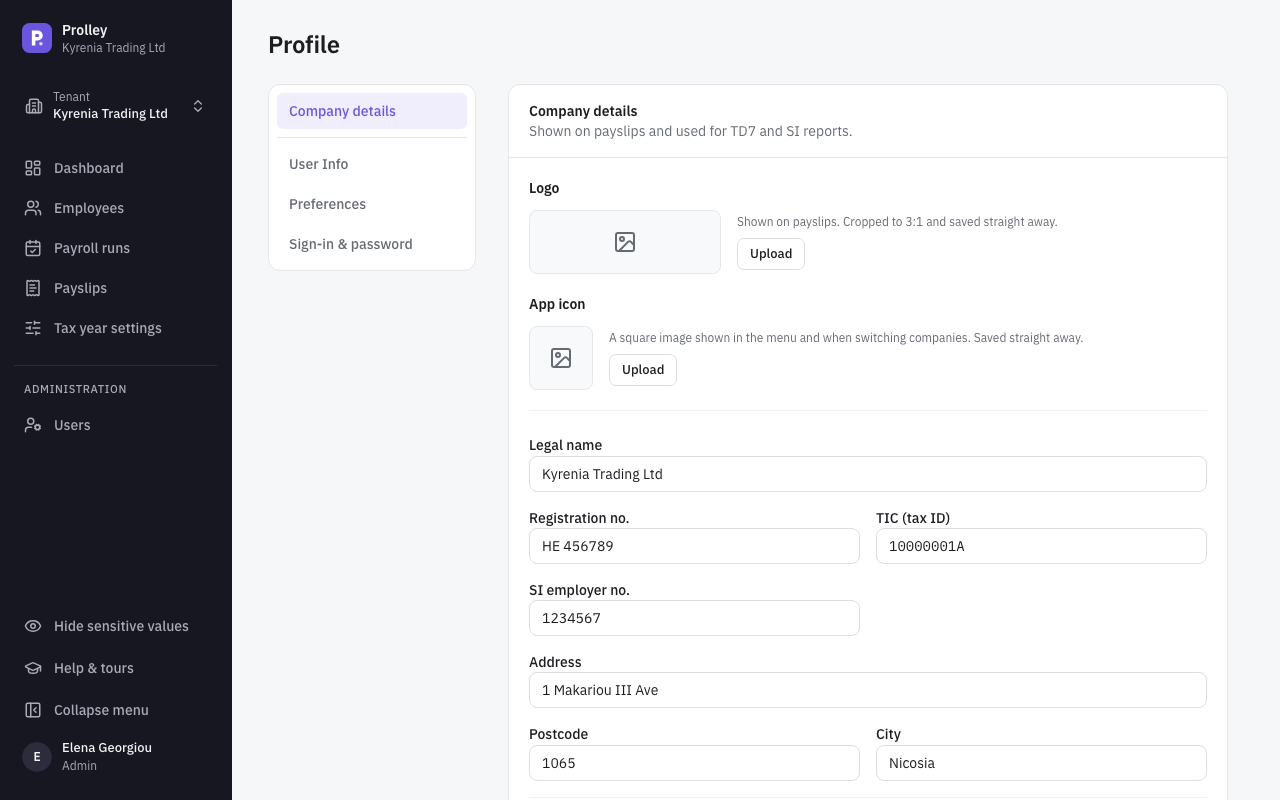
Click Add details. Fill in the Legal name, the TIC (tax ID) (8 digits and a letter) and the SI employer no., which are required, plus your registration number and address. These appear on payslips and on the TD7 and Social Insurance reports.
Under Official filings, set the employer type and the name and designation of the person who signs the TD63 certificates. Click Save company.
Confirm the tax year settings
Click Review rates to check the year's tax bands and contribution rates, then Confirm 2026 rates. Prolley ships with the current Cyprus rates, but you're responsible for checking them. See Check and manage your tax year settings.
Add your first employee
Click Add employee. The form is described in the next section.
Create your first payroll run
Once you have at least one employee, Create run creates a draft for the next month and opens it. See Run your first monthly payroll.
To invite your team, see Invite your team and choose their roles.
You can also reach your company details later from the user menu at the bottom of the sidebar: Company details. On the same screen you can upload your logo for payslips and switch on Email payslips, which is off until you turn it on.
Add an employee
Go to Employees in the sidebar and click Add employee. A panel opens on the right.
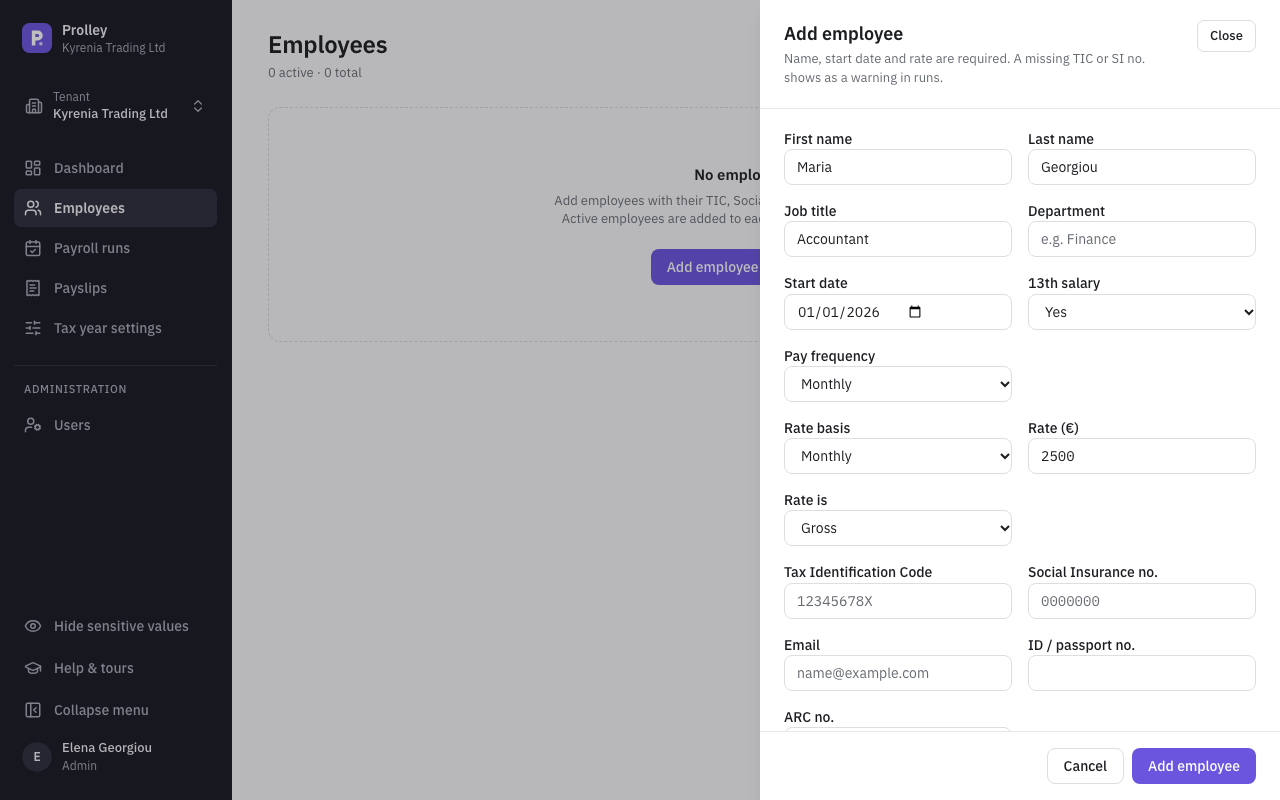
- Required: First name, Last name, Start date and Rate (€).
- Pay frequency: Monthly or Weekly. Weekly-paid staff must be on a weekly or hourly rate.
- Rate basis: Hourly, Weekly, Monthly or Annual. For hourly staff, also enter Contracted hours / week; it's used when no hours are entered for a run. See Pay weekly and hourly staff.
- Rate is: Gross, or Net (agreed take-home) if you agreed a take-home amount and want Prolley to work out the gross.
- 13th salary: on by default.
- Tax Identification Code and Social Insurance no.
- Email, ID / passport no. and Payslip delivery, used for emailing payslips.
Click Add employee to save. You can add more details later (date of birth, address, IBAN, exemptions, provident fund) with Edit employee on the employee's page. For exemptions, deductions and funds, see Set up an employee's tax and contributions.
If you already keep your staff in a spreadsheet, Import on the Employees page adds them from an Excel or CSV file.
Your plan covers the number of employees you chose at sign-up. When it's full, raise it under Billing before adding another active employee. See Your plan, billing and invoices.