Your plan, billing and invoices
How the free trial and the price work, how to change the number of employees on your plan, where to find invoices, and what read-only mode means.
Last updated
Each company in Prolley has its own subscription. You choose how many employees it covers and whether you pay monthly or yearly, always upfront. Every new company starts with a 14-day free trial.
Who can manage billing
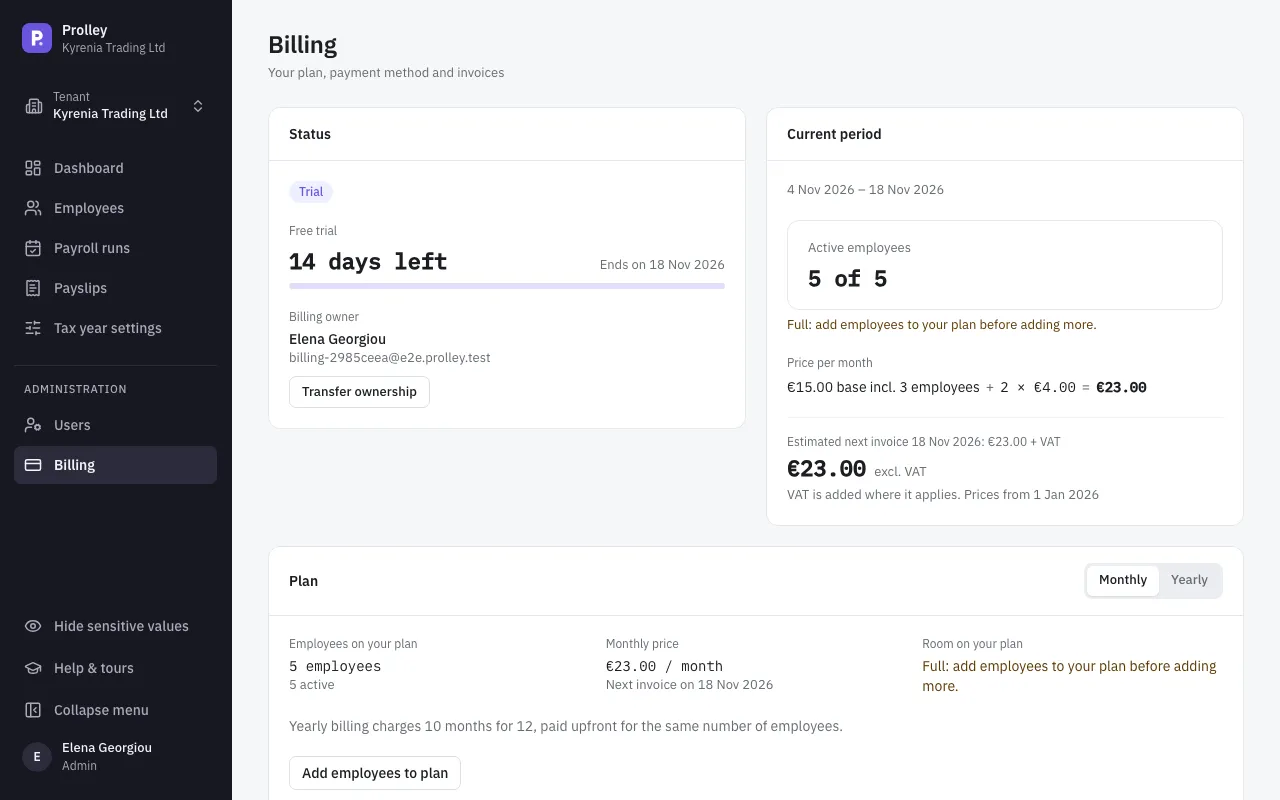
Billing is under Administration → Billing in the sidebar, for Admins only. One admin is the company's billing owner: at first, the person who created the company. Only the billing owner can change the plan, the payment method or the billing details. Other admins can look, and see who manages billing.
To hand billing over, the owner clicks Transfer ownership and chooses another active admin. If the owner leaves the company or stops being an admin, another admin can click Claim ownership. The billing owner can't be deleted, deactivated or made a non-admin until ownership has been transferred.
If you manage billing for more than one company, Billing in the user menu at the bottom of the sidebar lists them all, with each one's status, plan and next invoice.
The price
Your plan has a monthly base fee that includes 3 employees, plus a fee for each further employee. Yearly billing charges 10 months for 12, paid upfront. Prices exclude VAT. See the pricing calculator for the current prices.
For example, at €15 a month including 3 employees and €4 for each further employee, a plan for 5 employees costs €23 a month, or €230 a year.
The free trial
The trial starts when you add a payment method (see Set up your company) and lasts 14 days. You aren't charged during the trial. When it ends, your plan starts and the first invoice is charged to the payment method you added.
In the last 7 days of the trial, a banner at the top of the app shows when it ends.
Employees on your plan
Only active employees count towards your plan. When an employee leaves and you terminate them, their place is free for someone else. Rehiring an employee takes a place again.
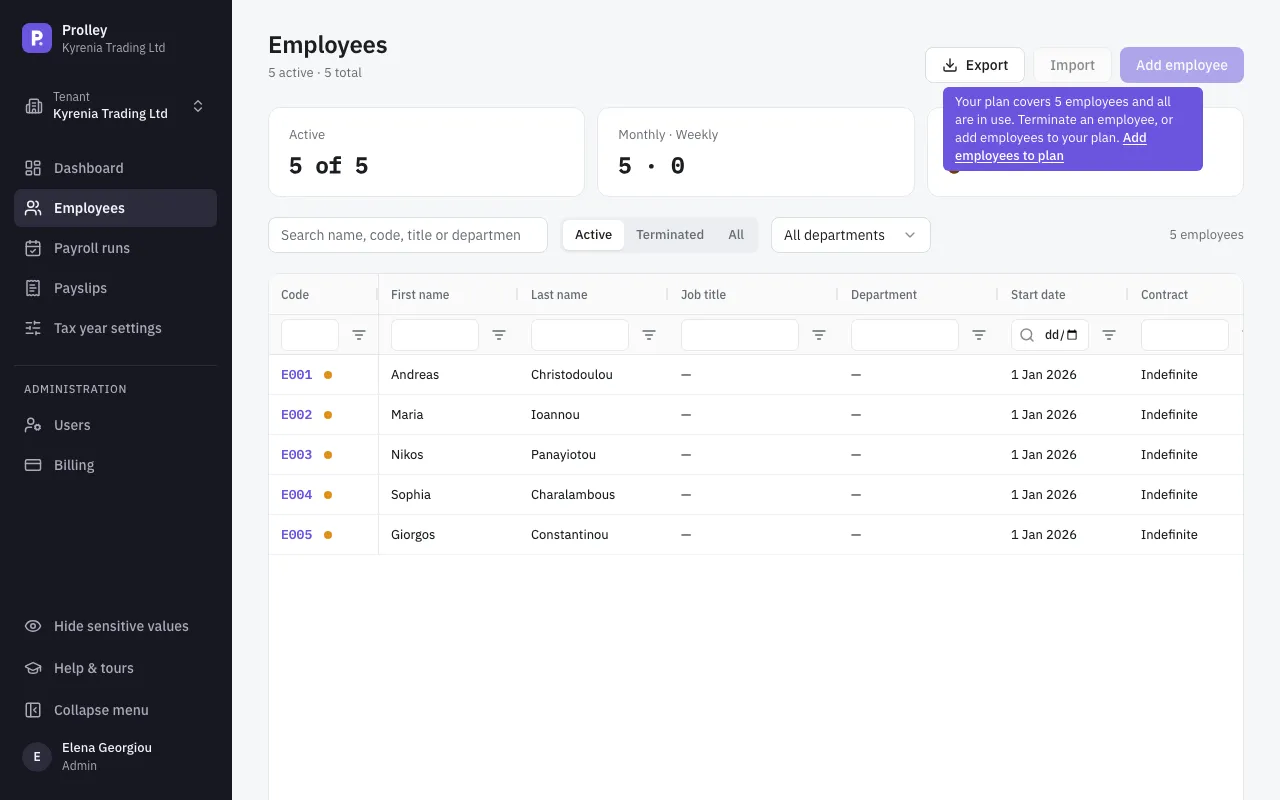
When every place is in use, Add employee and Import are disabled. Hold the pointer over the button to see why:
- the billing owner gets a link, Add employees to plan;
- everyone else is told who to ask.
Payroll is never blocked: you can always create, calculate, approve and lock runs for the employees you have.
Change your plan
The Plan card on the Billing page shows the Employees on your plan and the Room on your plan.
More employees
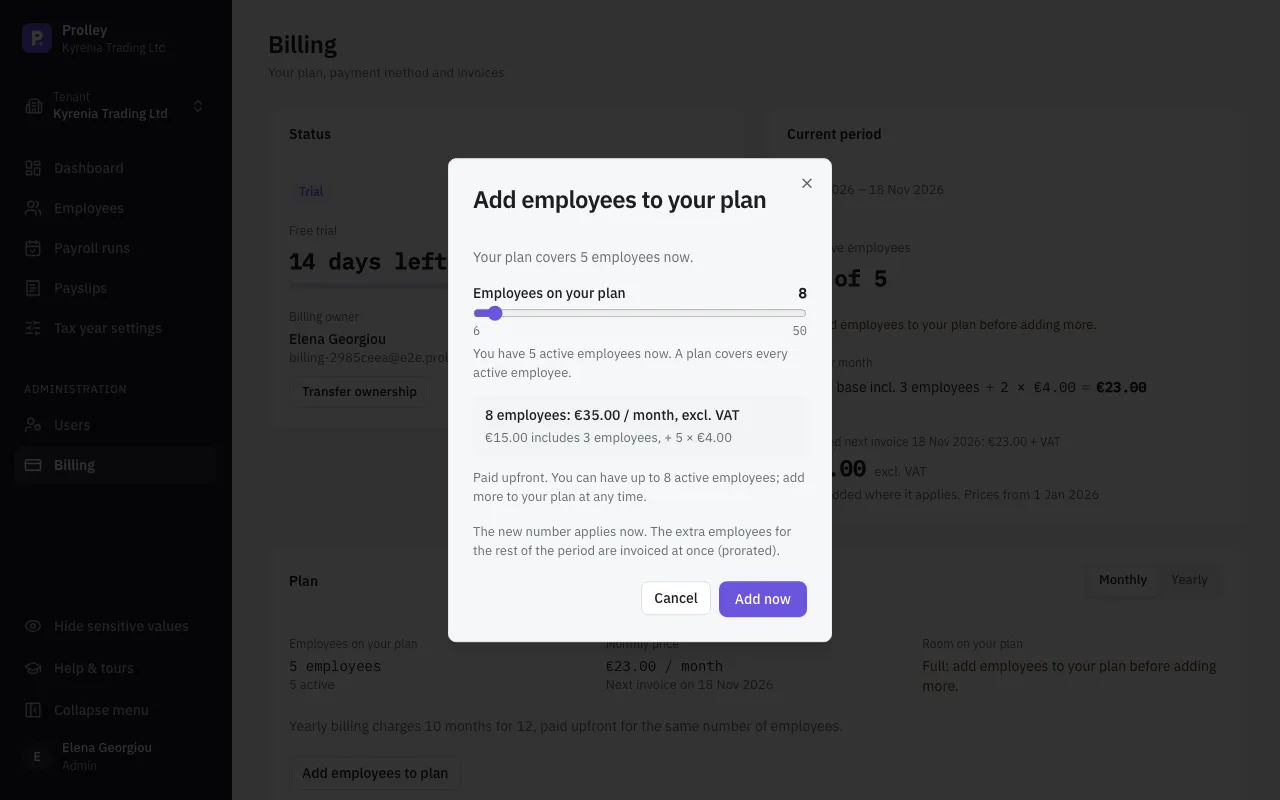
Click Add employees to plan, choose the new number and click Add now. The dialog shows the new monthly price. The new number applies at once. The extra employees for the rest of the current period are invoiced straight away, prorated. During the free trial nothing is charged.
Fewer employees
Click Fewer employees at renewal and choose the number. It applies from the next renewal, so the period you've paid for stays as it is. You can't add employees above the new number in the meantime.
Monthly or yearly
Under Billing, choose the other option and confirm. The switch happens at the end of the current period. A yearly plan that switches to monthly is not refunded for the rest of its year.
A change scheduled for the renewal can be withdrawn with Cancel change.
Payment method, billing details and invoices
- Payment method: card or SEPA Direct Debit. To change it, click Manage in Stripe. Stripe is the payment provider that holds your card or bank details; Prolley doesn't store them.
- Billing details: the name, address, billing email and VAT ID printed on your invoices. Invoices and payment receipts are emailed to the billing email. A VAT ID is optional for a company in Cyprus and needed for one elsewhere in the EU, with its country prefix (for example EL for Greece).
- Invoices: every invoice is listed with its total and status. PDF downloads it, View opens it on Stripe, and Pay pays an open invoice.
If a payment fails
Stripe tries the payment again over the following days and emails the billing owner. Meanwhile a banner asks you to Update payment method, and everything keeps working.
If the invoice is still unpaid 14 days after the first failure, the company becomes read-only. Paying the open invoice, or updating the payment method so the next attempt succeeds, restores full access.
Read-only mode
A company becomes read-only when:
- the free trial ended without a subscription;
- a payment is overdue;
- the subscription is unpaid;
- the subscription has been cancelled.
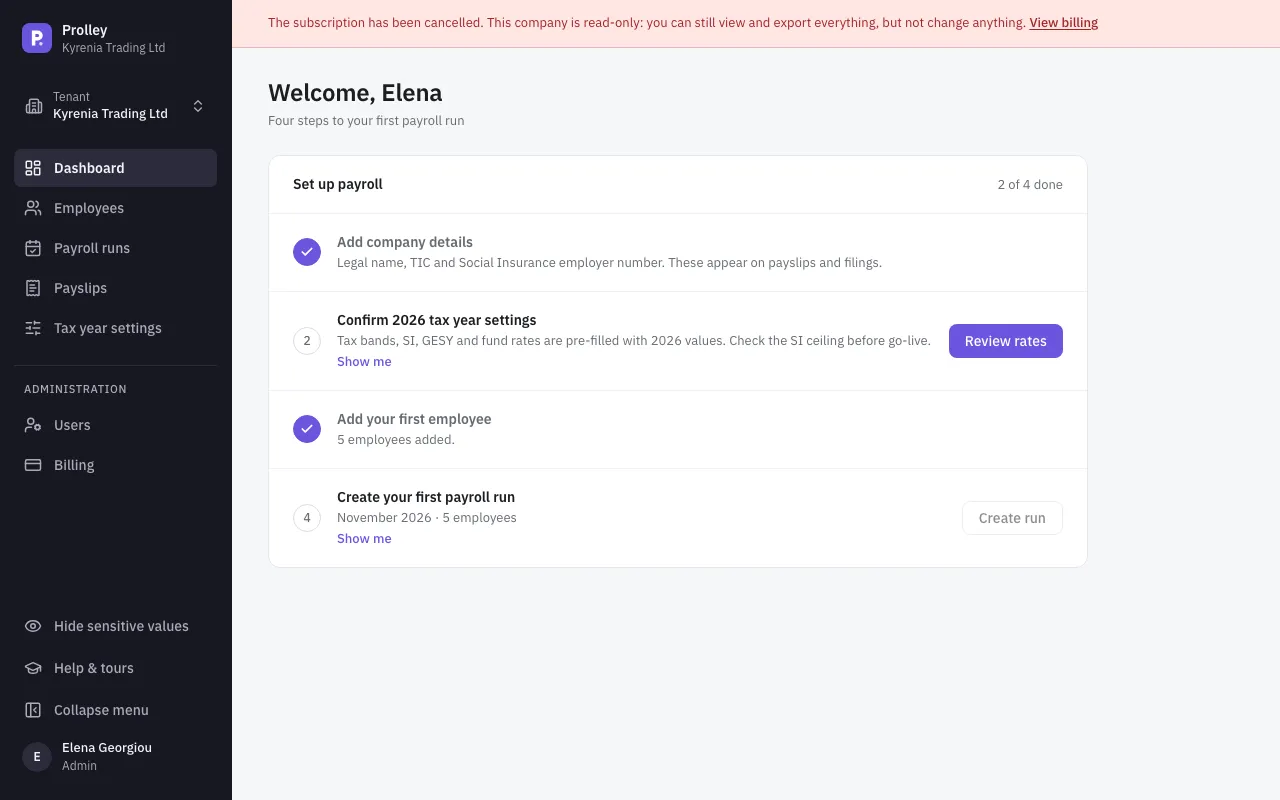
A banner at the top of the app says which one applies. Your data is kept, and you can still:
- view everything and export reports, payslip PDFs and ZIP files;
- email the payslips of a locked run;
- manage billing, users and your own profile.
Everything that changes data is disabled, with the tooltip "This company is read-only until billing is resolved." To restore full access, the billing owner resolves the cause on the Billing page.
Cancel, or come back
Cancel subscription keeps the company fully working until the end of the period you've paid for. After that it becomes read-only, and your data is kept. Until that date, Reactivate subscription withdraws the cancellation. After it, Subscribe again starts a new subscription.
Add another company
To run payroll for a second company, open the company switcher at the top of the sidebar and click New company. You sign in to it with the same email and password. It has its own subscription, its own 14-day free trial, and needs its own payment method.