Invite your team and choose their roles
Invite users, what an Admin, a Payroll manager and a Viewer can do, deactivate or remove a user, and sign in to more than one company.
Last updated
Everyone who works on your payroll should have their own sign-in. You invite them by email and choose their role, which decides what they can do.
Only an Admin can manage users.
What each role can do
| Role | Can |
|---|---|
| Viewer | See everything: employees, runs, payslips, reports, settings and the audit log. Can't change anything |
| Payroll manager | Everything a Viewer can, plus: add and edit employees and their pay, import employees, run payroll from draft to locked, send payslips and export reports. Can delete a run only before it's approved |
| Admin | Everything a Payroll manager can, plus: company details, tax year settings, users and billing, deleting an employee permanently, and deleting a run at any stage |
The person who created the company is its first Admin. A company can have several Admins.
Invite someone
Open Users
In the sidebar, under Administration, click Users, then Invite User.
Fill in their details
Enter their First Name, Last Name and Email, and optionally a Phone Number. Choose their Role.
Send the invite
Click Send invite. They get an email with a link to accept.
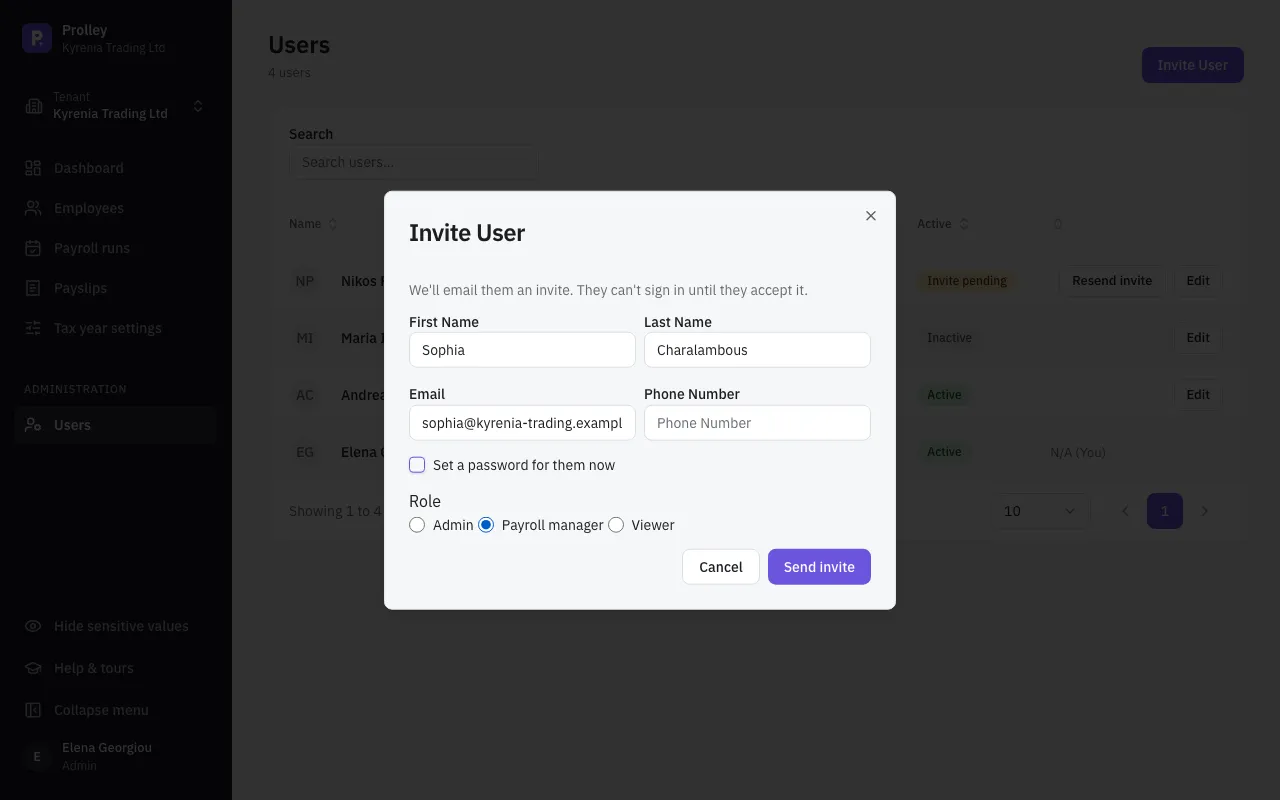
If you'd rather give them a password yourself, tick Set a password for them now. They still need to accept the invite before they can sign in.
Accepting an invite
The person opens the link in the email and chooses a password on the Accept your invite page. If your sign-in page offers Google or Microsoft, they can use that instead, as long as it's the same email address the invite was sent to. Then they sign in as usual.
The link works for 7 days, and only once.
Pending invites
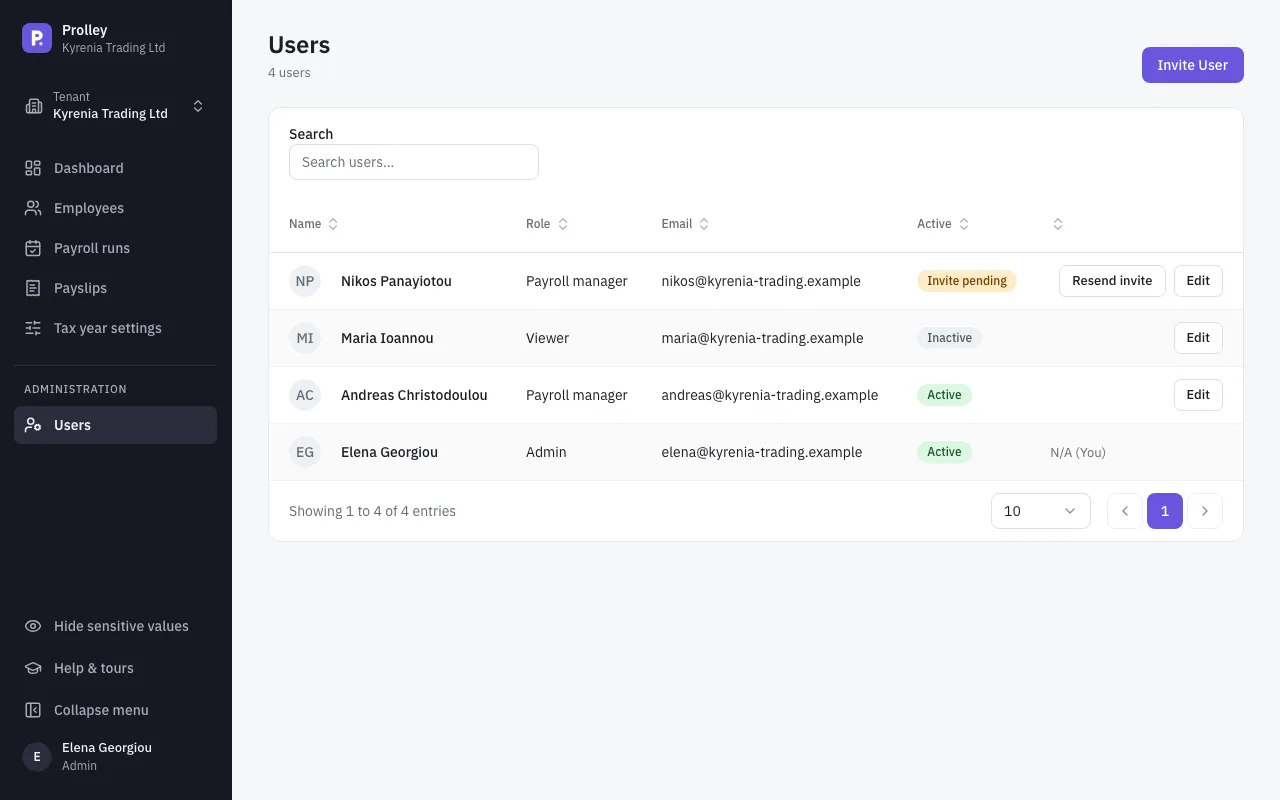
Until someone accepts, they're marked Invite pending in the list. If the email went astray or the link expired, click Resend invite: a new link is sent and the old one stops working. To withdraw an invite, delete the user (below).
Change a role, deactivate or delete
Click Edit next to the user.
- Change the role: choose another Role and click Save.
- Deactivate: switch off Is Active and save. They can't sign in, but their account and history stay. Switch it back on to restore access.
- Delete: click Delete to remove the user for good.
You can't edit or delete yourself: your own row shows N/A (You). Ask another Admin.
The company's billing owner can't be deleted, deactivated or made a non-Admin until billing has been handed to another Admin. See Your plan, billing and invoices.
User management keeps working while the company is read-only, so you can always add an Admin to sort out billing.
Signing in
- Forgot your password? On the sign-in page, click Forgot password? and enter your email. You get a reset link for each company you belong to.
- Passwords need at least 6 characters, with a lowercase letter, an uppercase letter and a number.
- Google or Microsoft: if your sign-in page shows Continue with Google or Continue with Microsoft, you can use that instead of a password. Under your profile's Sign-in & password tab you can connect or disconnect them, or set a password. You can't remove your only way of signing in.
More than one company
If you work on payroll for several companies, you have a separate account in each, with its own password and role. If you use the same email and password for them, Prolley asks which company to open when you sign in. The page is titled Choose a tenant: "tenant" is Prolley's word for a company.
Once signed in, switch companies from the company switcher at the top of the sidebar.
Your own preferences
Open your profile from the user menu at the bottom of the sidebar. On the Preferences tab:
- Language: English or Greek. It's per user, so each person can choose.
- How many rows tables show per page.
Payslips, exports and emails stay in English whatever language you choose.