Run your first monthly payroll
Create a run, enter hours, calculate and check the figures, then approve and lock it to issue payslips.
Last updated
Every payroll run moves through four statuses: Draft, Calculated, Approved and Locked. This guide walks through a monthly run from start to finish. You need the Admin or Payroll manager role.
Create the run
Open Payroll runs
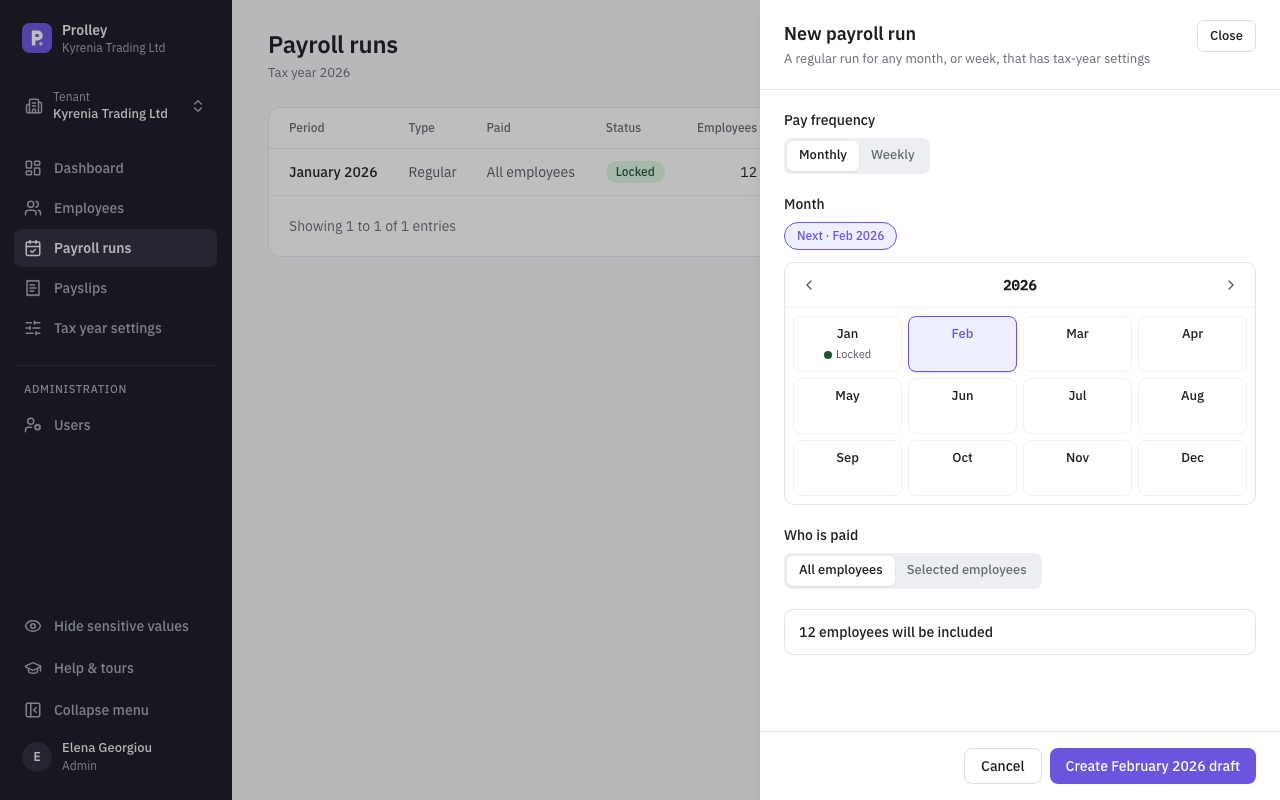
In the sidebar, click Payroll runs, then New run. For your very first run the button is Create first run.
Choose the period
Under Pay frequency pick Monthly, then choose the Month. The suggested month is marked Next, and months that already have a run are flagged. Paying weekly staff? See Pay weekly and hourly staff.
Choose who is paid
Leave All employees selected, or pick Selected employees to pay only some of them. The panel shows how many employees will be included.
Create the draft
Click Create September 2026 draft (the button names your month). The run page opens.
Enter this month's inputs (Draft)
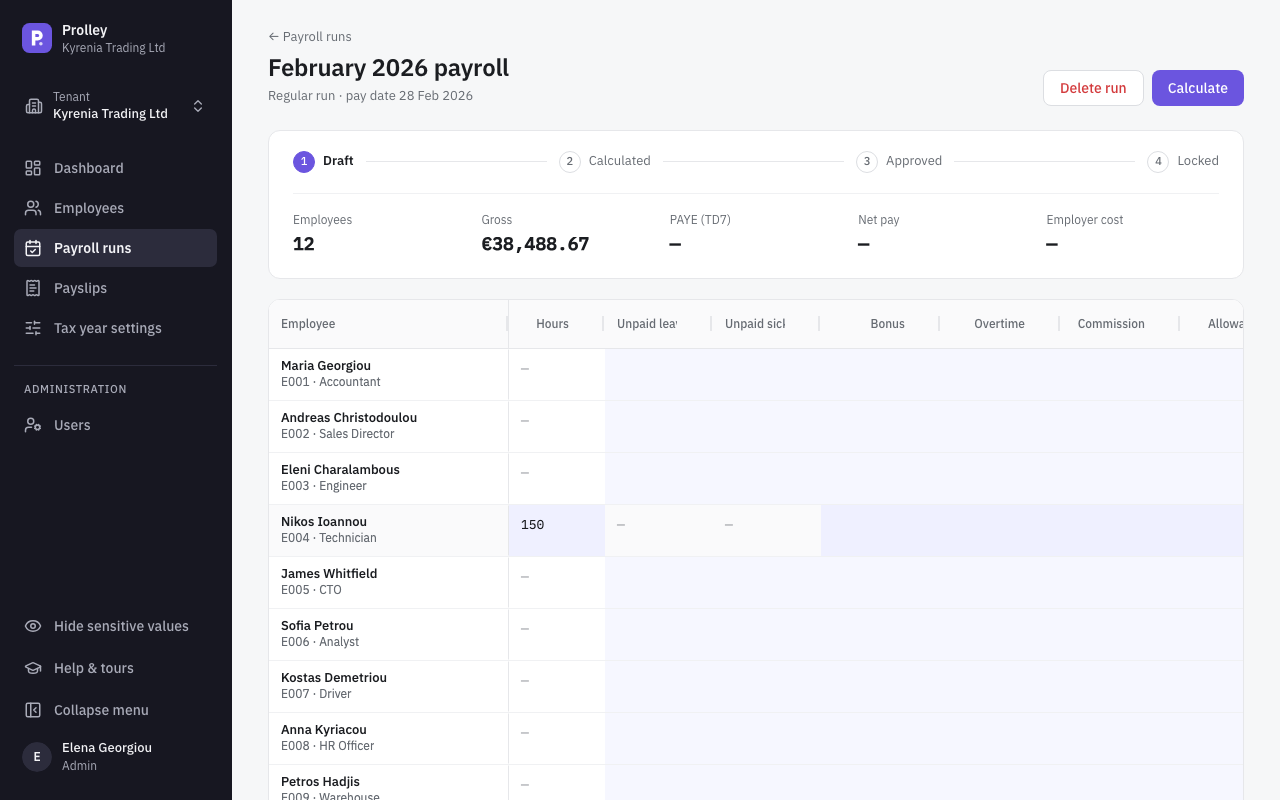
The run page shows summary tiles (employees, gross, PAYE, net pay and employer cost) and a row per employee.
- Hours for hourly staff: type them into the Hours cell. An empty cell uses the employee's contracted hours, shown greyed out.
- Unpaid leave, bonus, overtime and other items: use the input columns in the grid, or click an employee's name to open their panel and add lines there.
Each change recalculates that row and the totals straight away.
Calculate and check the figures
Calculate
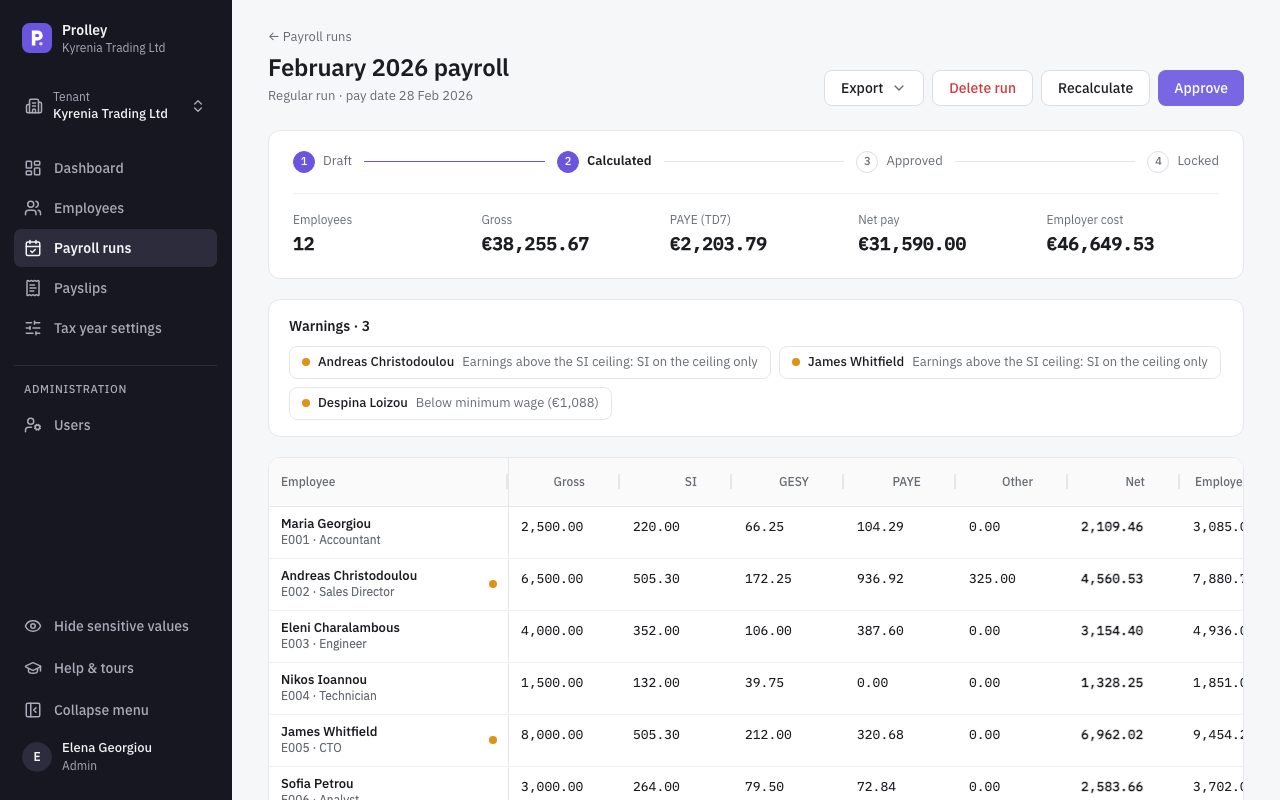
Click Calculate. The status moves to Calculated and every row shows gross, Social Insurance, GESY, PAYE, other deductions, net pay and employer cost.
Review the warnings
The Warnings card lists anything that needs a look, such as a missing TIC or hours that weren't entered. Click an employee to see how each figure was calculated, step by step.
Fix and recalculate if needed
While the run is Calculated you can still change it from the employee panel. If you change rates or employee details elsewhere, the run recalculates by itself; Recalculate does it on demand.
Before locking, you can also Export the payroll summary and the other run reports to check them. They're marked provisional until the run is locked.
Approve
When the figures are right, click Approve. Prolley recalculates once more and freezes the figures: nothing in the run can be edited.
Approval is refused if:
- any employee in the run is missing a TIC or a Social Insurance number, or
- an earlier run in the same tax year that pays the same employee is still open.
Need another change? Back to calculated reopens the run for editing.
Lock and issue payslips
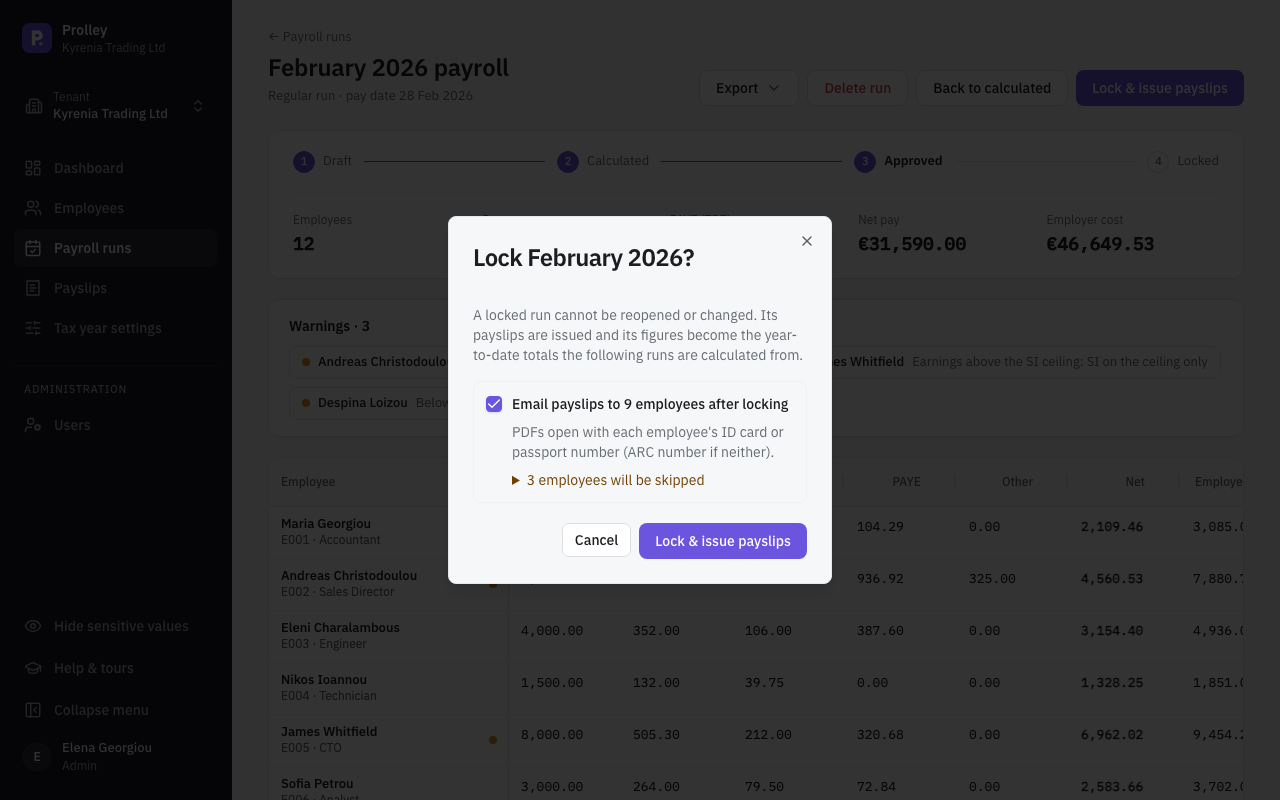
Click Lock & issue payslips and confirm. Locking:
- issues the payslips,
- makes the run's figures part of the year-to-date totals the next runs are calculated from, and
- can optionally email payslips to your employees, if the company's Email payslips switch is on.
If several runs are open, lock them in order: an earlier month must be locked before a later one can be approved or locked.
What each status allows
| Status | You can | Next step |
|---|---|---|
| Draft | Enter hours and pay items | Calculate |
| Calculated | Edit, recalculate, export provisional reports | Approve |
| Approved | Export; figures are frozen | Lock & issue payslips, or Back to calculated |
| Locked | View and send payslips, export all reports | Create correction if needed |
A Payroll manager can delete a run before it's approved, and an Admin can delete a run in any status, with Delete run.
If your company is read-only
When the free trial ends or a payment is overdue, a banner says the company is read-only. You can still view and export everything, download payslips and send payslips of locked runs, but you can't create, calculate, approve or lock runs or change employees or settings. Nothing is deleted. An Admin can fix it with View billing.
Next: Payslips and reports.