Check and manage your tax year settings
Review and confirm the year's tax bands and contribution rates, change a value safely, add a contribution scheme and start a new tax year.
Last updated
Prolley calculates income tax, Social Insurance, GESY and the employer funds from the rates, thresholds and tax bands in your tax year settings. Each year has its own settings, and changing them never alters a run that has been approved, so past payroll can always be reproduced.
To open them, click Tax year settings in the sidebar. Everyone in the company can look at them; only an Admin can change them.
What's on the page
The year is shown at the top. Use the arrows or the Tax year list to switch years. A year you haven't confirmed yet is marked (unconfirmed).
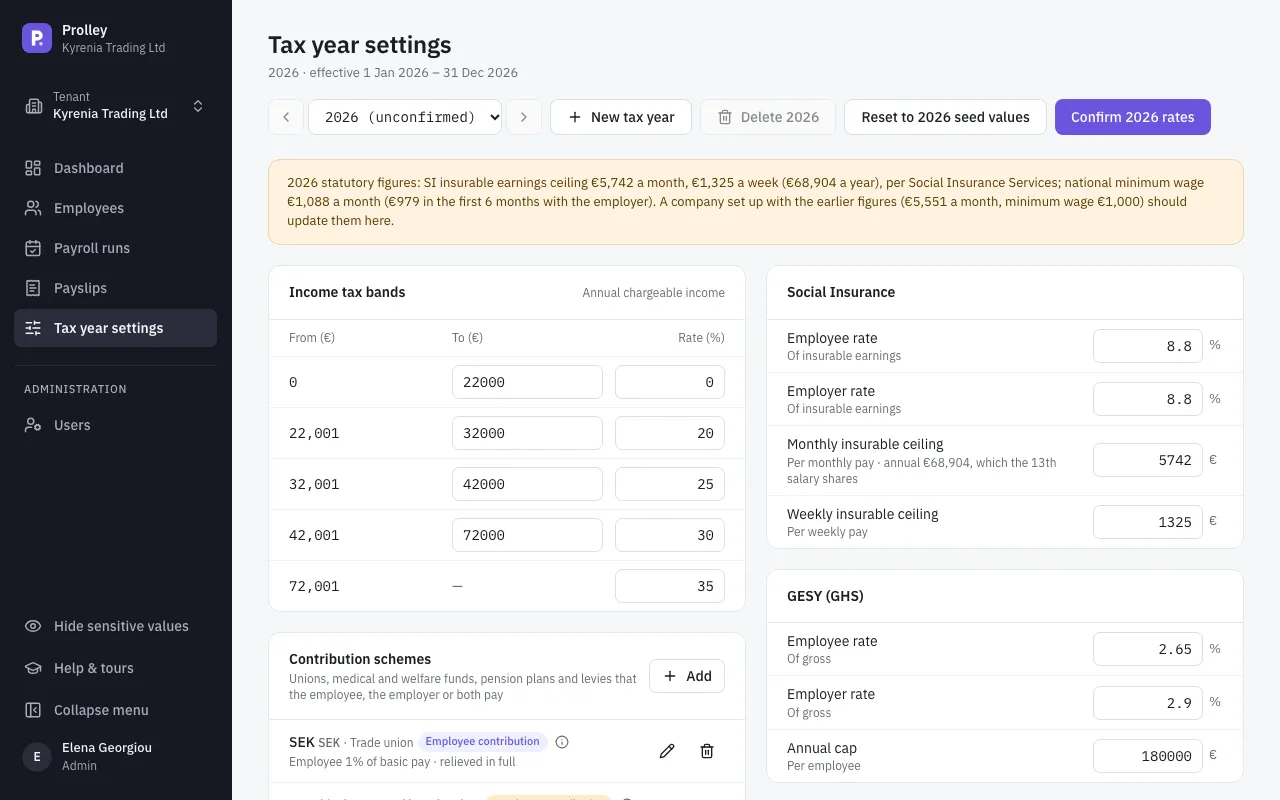
- Income tax bands: the income range each band covers (From and To) and its rate.
- Contribution schemes: unions, medical and welfare funds, and pension or provident plans that some of your employees belong to. See Contribution schemes below.
- Company is Holiday Fund exempt: switch it off if your company pays into the central Holiday Fund. It applies to employees set to follow the company; an employee can also be set individually (see Set up an employee's tax and contributions).
- Social Insurance: the employee and employer rates, and the monthly and weekly ceilings on insurable earnings.
- GESY (GHS): the employee and employer rates and the annual cap.
- Employer funds: the Social Cohesion Fund, Redundancy Fund, HRDA and Holiday Fund rates.
- Reliefs & thresholds: the deductions cap, the exemptions for new residents, first employment and repatriation, the minimum wage and the working days in a month.
- TD59 deductions: the amounts for children, single parents, housing, green investments and natural disaster insurance.
Each value has a short explanation under its name.
Check and confirm the year
Compare the values with the official figures
Prolley sets each year up from the official Cyprus figures. Check the tax bands and rates against the Tax Department and Social Insurance Services, and correct anything that differs for your company.
Confirm the rates
Click Confirm 2026 rates. The year loses its (unconfirmed) mark, and the dashboard checklist ticks the step.
Change a value
Type the new value and leave the field (press Tab or click elsewhere). It is saved straight away; there is no save button. A note on the page tells you which runs the change affects:
- Draft and Calculated runs are recalculated with the new value at once.
- Approved and Locked runs keep the rates they were calculated with.
Any change takes the year back to unconfirmed, so confirm it again once you're done.
Versions: changes during the year
Once a run has been approved, the rates it used are fixed for it. If you then change a value, Prolley keeps the old rates for the months already approved and starts a new version on the 1st of the following month.
For example, with January and February approved, raising a rate creates a version that applies from 1 March. January and February keep the old rate; March onwards uses the new one.
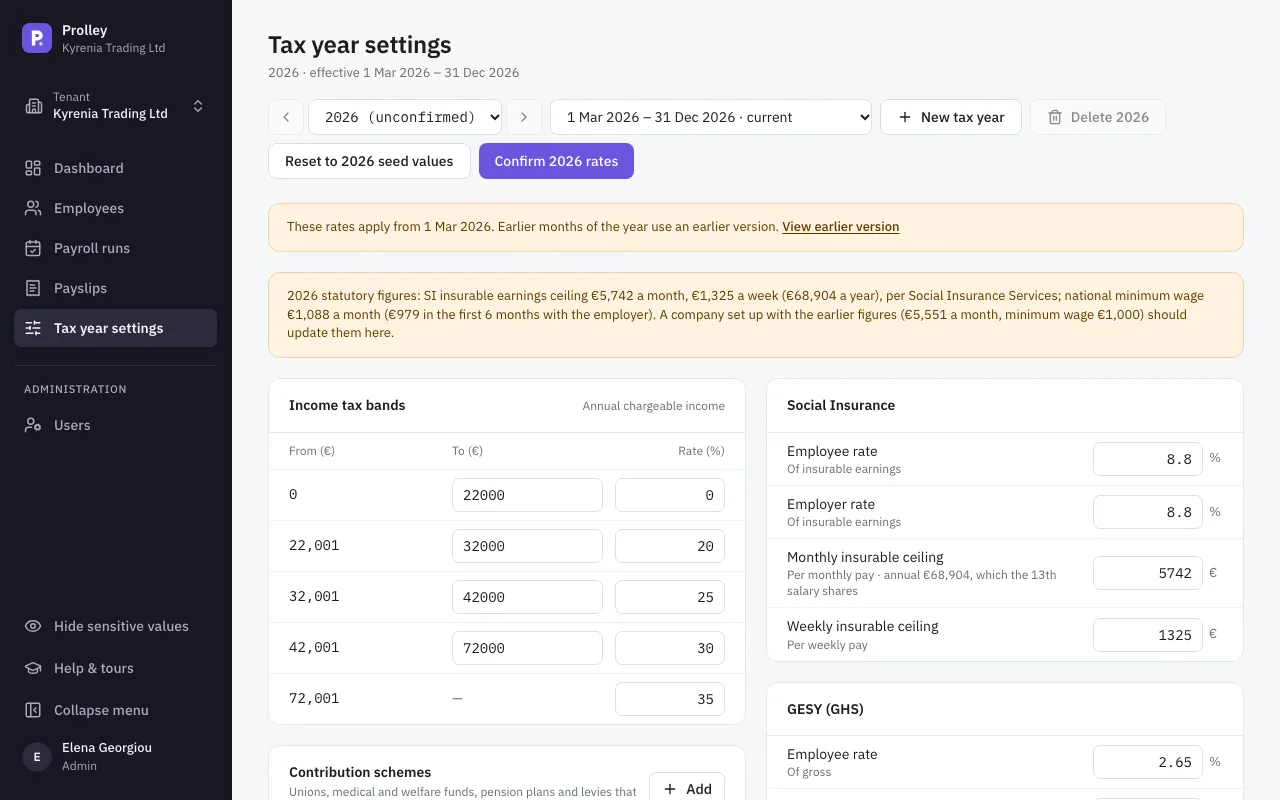
When a year has more than one version, a list next to the year lets you choose which one to look at. Earlier versions are read-only; your changes always go to the current one. Each payroll run also shows which version it was calculated with.
If every month of the year is already approved or locked, the year can't be changed any more.
Contribution schemes
A contribution scheme is a regular payment that some employees make, or that you make for them, on top of the statutory contributions: a trade union subscription, a medical or welfare fund, or a pension or provident plan.
To add one, click Add on the Contribution schemes card. Give it a short Code and a Name, choose its category and Who pays, and enter a percentage of pay or a fixed amount a month. If the employee pays, also choose the Income tax relief. What this scheme does at the end of the panel describes, in plain words, what will be charged and how it is reported.
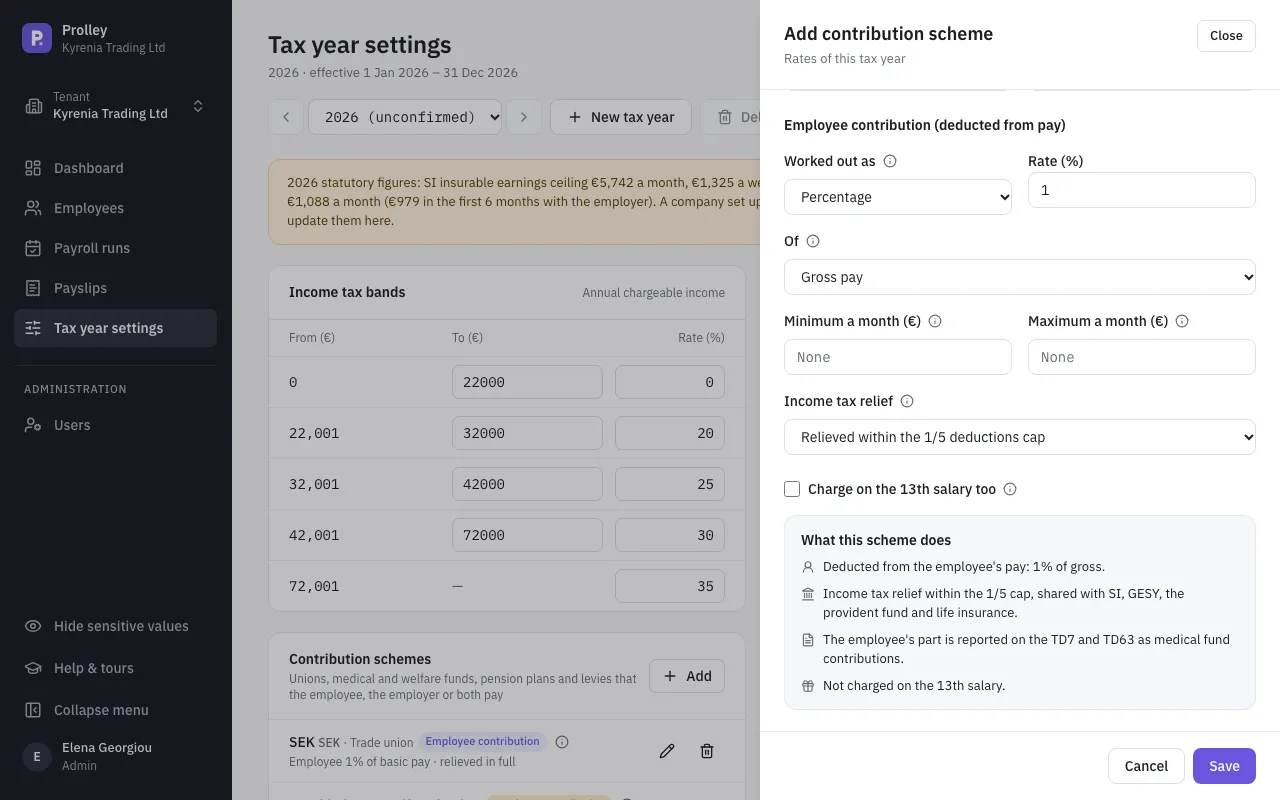
Tick Charge on the 13th salary too only if the scheme's rules say so. Schemes belong to the tax year, so a change to one applies like any other change above. For every field and how schemes show on payslips and reports, see Unions, funds and other contribution schemes. To put an employee in a scheme, open the employee and add it on their Tax & contributions tab (see Set up an employee's tax and contributions).
Start a new tax year
You don't have to do anything at the turn of the year. When you create the first January run, Prolley sets the new year up: from the official figures if it has them, otherwise as a copy of the previous year. Like any new year, it starts unconfirmed, so review and confirm it before you approve its first run.
To set a year up early, for example to enter next year's rates in December:
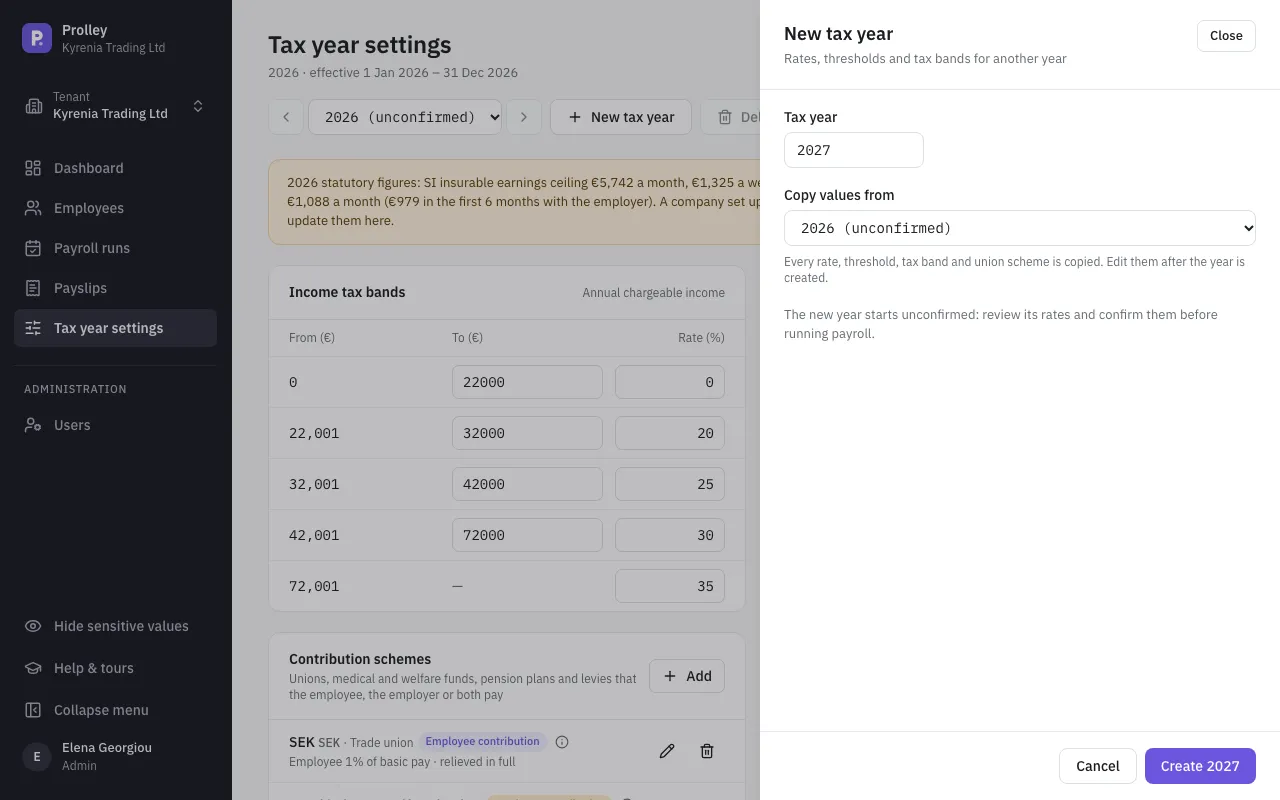
Open the panel
Click New tax year.
Choose the year and where its values come from
Enter the Tax year and choose the year to Copy values from. Every rate, threshold, tax band and contribution scheme is copied. If Prolley has the official figures for that year, it uses them instead.
Create it
Click Create 2027, then change the values that differ and confirm the year.
You can delete a year with Delete 2027 as long as it has no payroll runs and isn't your only year.