Pay weekly and hourly staff
Set an employee's pay frequency and rate basis, create a weekly payroll run, and enter the hours worked.
Last updated
Every employee in Prolley is paid either monthly or weekly, on an hourly, weekly, monthly or annual rate. The two are separate choices: a monthly-paid employee can be on an hourly rate, but a weekly-paid employee must be on a weekly or an hourly rate.
You need the Admin or Payroll manager role.
Set up a weekly-paid or hourly employee
When you add an employee, choose their Pay frequency and Rate basis. For an hourly rate, also enter their Contracted hours / week: Prolley pays these when no hours are entered in a run.
To change them later, open the employee:
Change the rate first
On the Pay tab, click Change pay rate and enter the new rate, choosing whether it's hourly, weekly, monthly or annual.
Then change the pay frequency
Click Edit employee, open the Employment tab and change the Pay frequency.
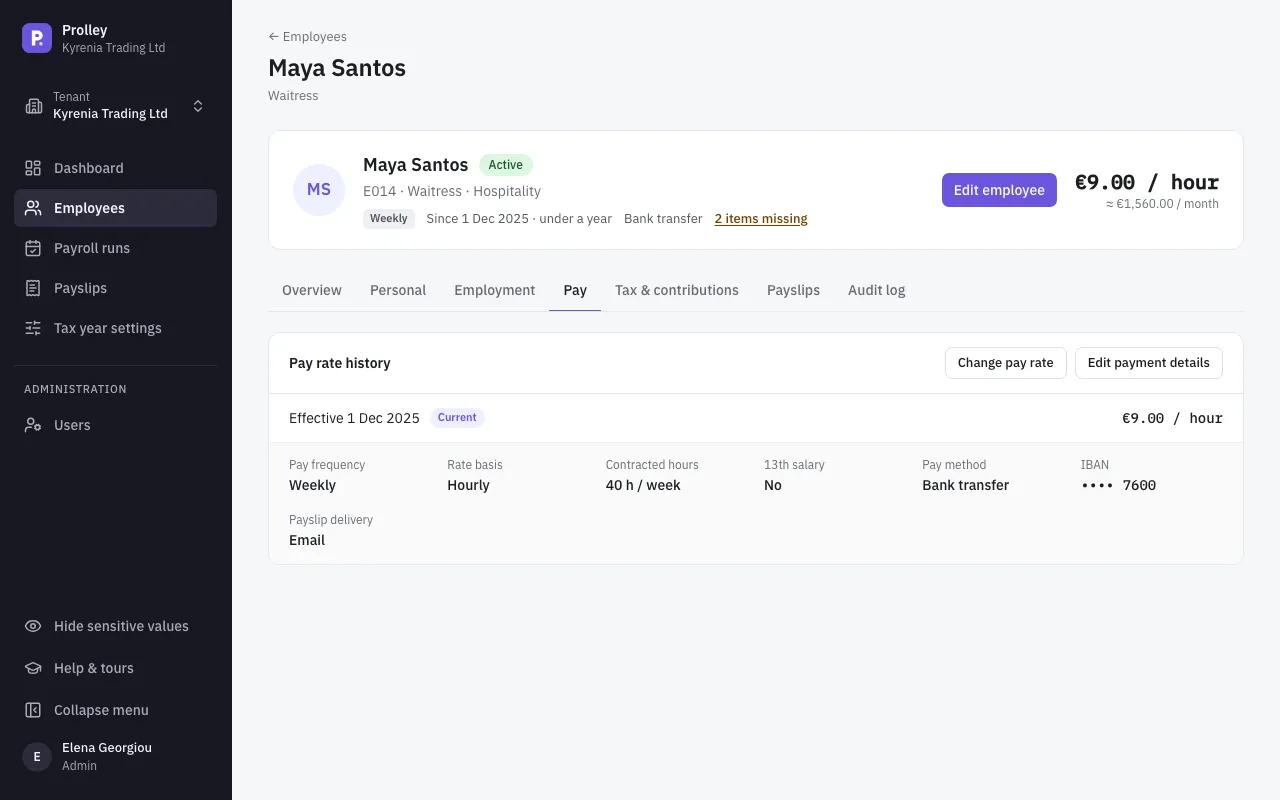
When an employee moves from monthly to weekly pay (or back), their first run at the new frequency pays from the day after the last day the old one paid, so no day is paid twice or missed.
How a pay week works
- A week runs from Monday to Sunday and is paid on its Friday.
- It belongs to the month, and the tax year, of that Friday. The TD7, the Social Insurance report and the dashboard all count it there.
- Week 1 is the week with the year's first Friday, so a year has 52 or sometimes 53 weeks.
A week can span two months. Week 40 of 2026, for example, runs from Monday 28 September to Sunday 4 October and is paid on Friday 2 October, so it counts in October. In the same way, the week from 28 December 2026 to 3 January 2027 is paid on Friday 1 January 2027 and is week 1 of 2027.
Create a weekly run
Start a new run
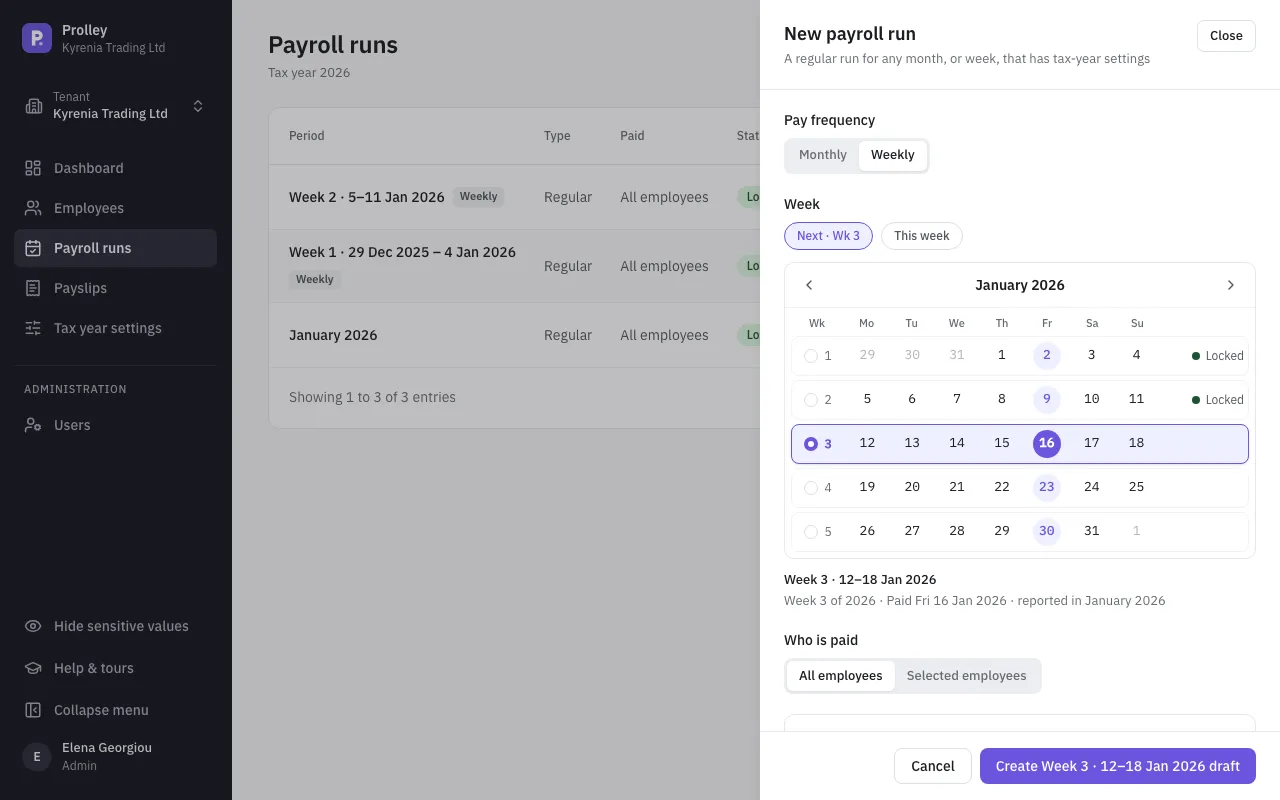
On Payroll runs, click New run. Once you have weekly-paid staff, the panel asks for the Pay frequency: choose Weekly.
Pick the week
Prolley suggests the week after your latest weekly run. The panel shows the Friday it's paid on and the month it's reported in. Pick another week if you need to.
Create the draft
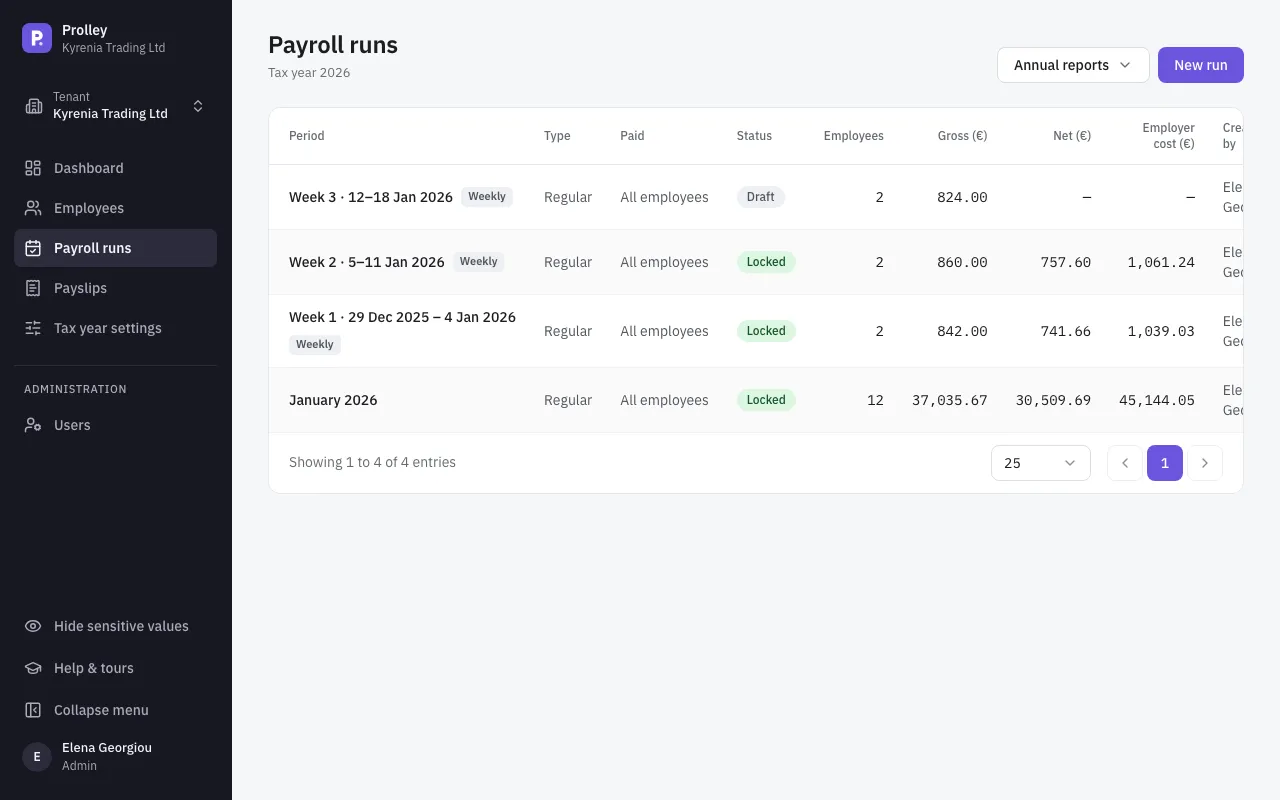
Click Create … draft. The run includes your weekly-paid employees only.
From here, a weekly run works like a monthly one: calculate, check, approve and lock. See Run your first monthly payroll.
Monthly-paid staff aren't included in weekly runs, and weekly-paid staff aren't included in monthly runs. If you have both, you run both. Runs are locked in the order they're paid: the week paid on Friday 30 October is locked before the October monthly run, which is paid on 31 October.
Enter hours for hourly staff
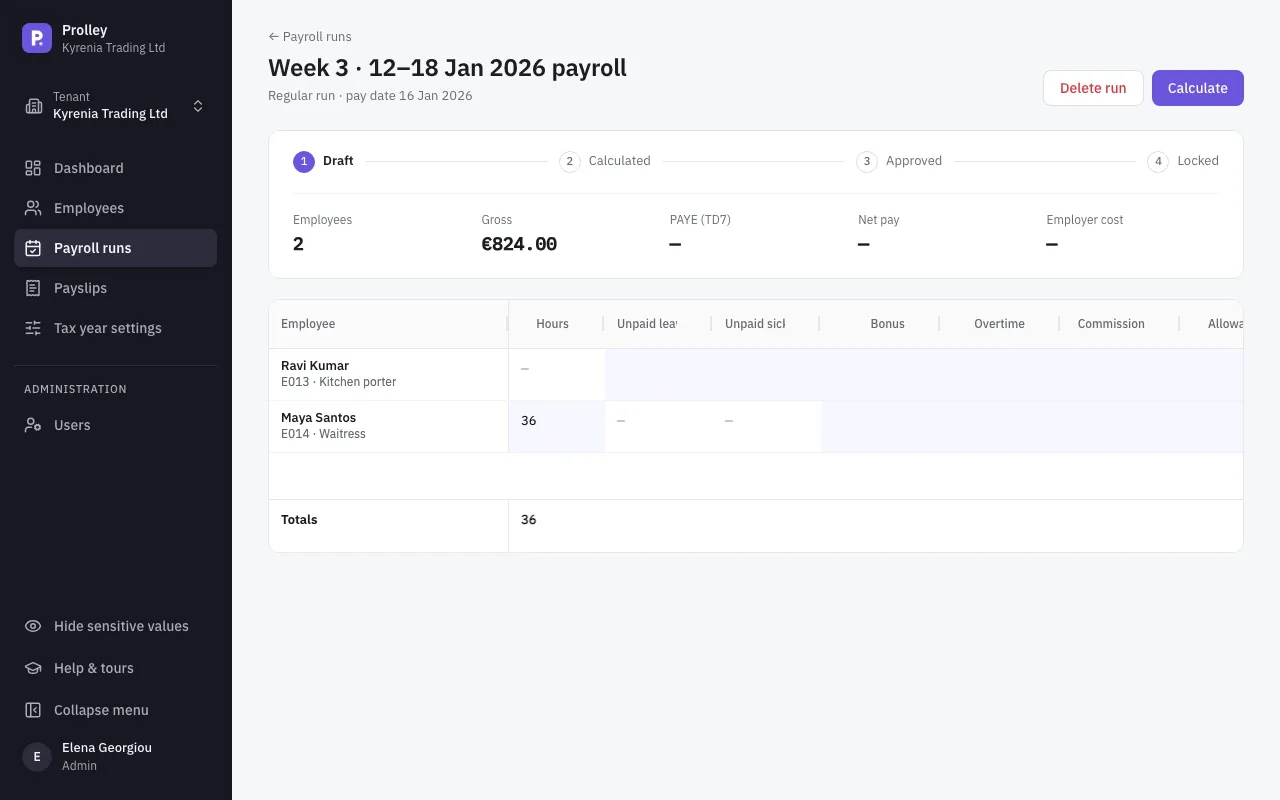
In a draft run, type the hours actually worked into each hourly employee's Hours cell. You can enter up to 168 hours in a weekly run, and up to 744 in a monthly one.
An empty cell uses the employee's contracted hours, shown greyed out. The run calculates with them and lists a warning, so you can tell entered hours from defaults before you approve.
Monthly-paid hourly staff work the same way in monthly runs.
What's different in a weekly run
- Social Insurance is charged up to a weekly ceiling (the Weekly insurable ceiling in Tax year settings) instead of the monthly one. The GESY cap is annual for everyone.
- Income tax is spread over the weeks left in the year, as it is over the months for monthly staff.
- The minimum wage check uses the monthly minimum × 12 ÷ 52.
- Contribution schemes with a fixed amount a month charge 12/52 of it each week.
- Unpaid days: one day is worth the monthly equivalent of the pay ÷ the working days in a month.
- Payslips show the weekly rate (for example "€530.00/wk") and the week. The bank transfer reference reads like "Salary wk 41 2026".
Weekly-paid staff who get a 13th salary are paid it in the December 13th salary run, with everyone else, at their weekly rate × 52 ÷ 12. See Fix a locked run and pay the 13th salary.
Next: Payslips and reports.