Payslips and reports
Download and email payslips, and export the monthly and annual figures for your Tax Department and Social Insurance filings.
Last updated
Once a run is calculated, Prolley gives you payslips and the reports you need for your filings. This guide shows where to find them.
View and download payslips
Click Payslips in the sidebar, or View payslips on a locked run.
Choose the run and the employee
Pick a Payroll run and an employee. The payslip shows earnings, deductions, net pay and the employer's contributions, for this period and for the year to date.
Download
Download PDF saves the selected employee's payslip. Download all saves a ZIP with one PDF per employee (Admin and Payroll manager).
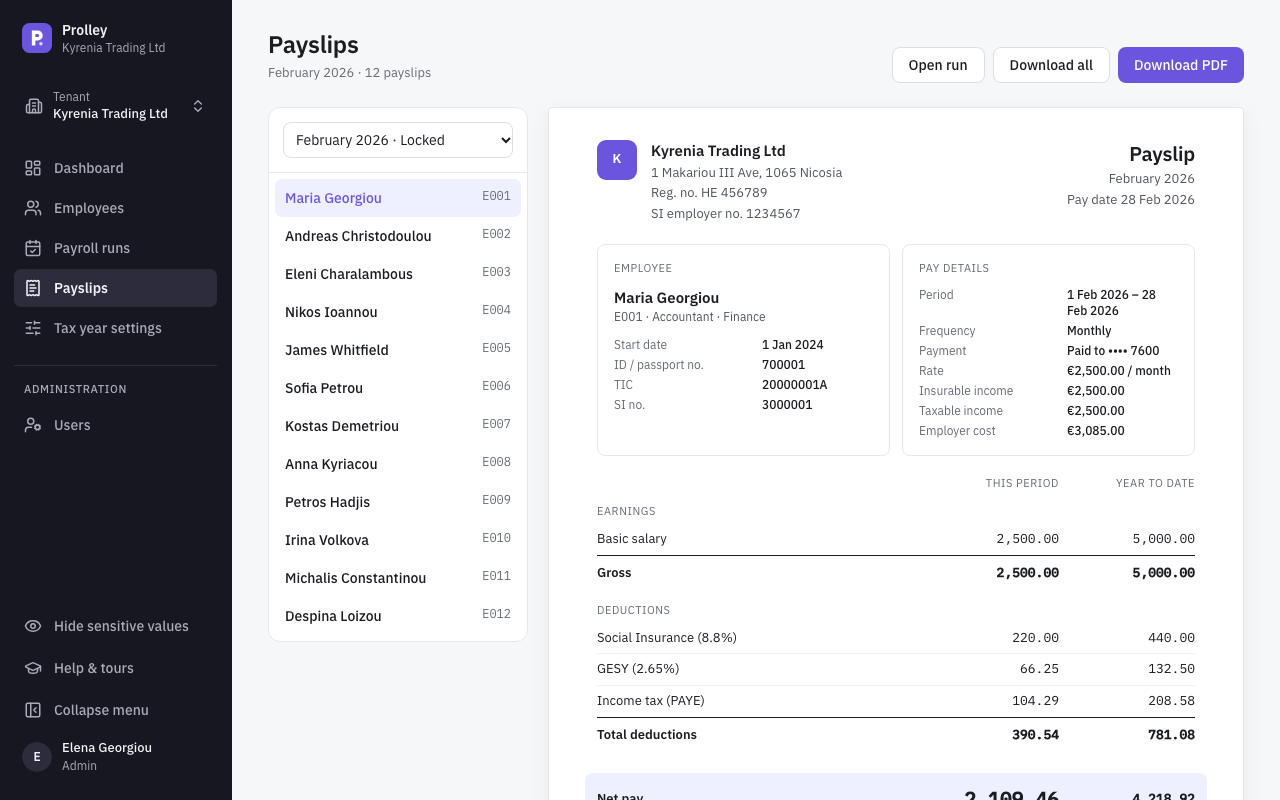
Payslips appear from the Calculated status on. Until the run is locked they are previews; locking issues them. Payslip PDFs are always in English.
Each employee's page also has a Payslips tab with all of their payslips.
Email payslips to employees
Emailing needs four things:
- the run is Locked;
- Email payslips is switched on in Company details (an Admin does this once; it's off by default);
- the employee has an email address and Payslip delivery set to Email;
- if Protect PDFs with the employee's ID number is on (the default), the employee has an ID/passport or ARC number. It's the password that opens the PDF. Employees without one are skipped.
Then send them in any of these ways:
- tick Email payslips to … employees after locking when you lock the run;
- click Send payslips on a locked run, which sends only those not sent yet;
- click an employee on the run page and use Email payslip or Resend payslip.
Each payslip shows its status: Queued, Emailed, Failed or Skipped. Emails usually go out within a minute.
Monthly reports for a run
On the run page, click Export. Reports are available from the Calculated status on; until the run is locked they're marked provisional and their file names end in -Draft.
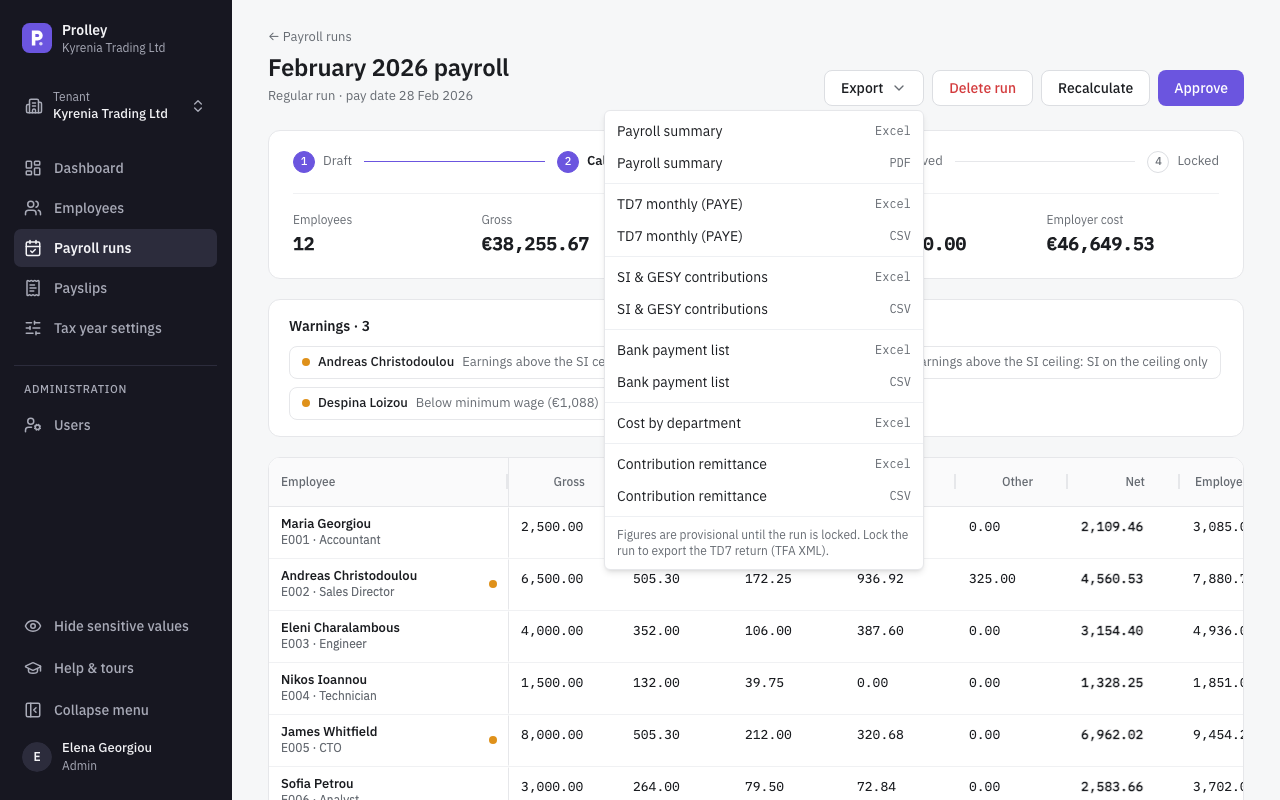
| Report | Formats | What it's for |
|---|---|---|
| Payroll summary | Excel, PDF | Reviewing the run |
| TD7 monthly (PAYE) | Excel, CSV, TFA XML (locked runs only) | Your monthly PAYE return to the Tax Department |
| SI & GESY contributions | Excel, CSV | Filing Social Insurance and GESY contributions |
| Bank payment list | Excel, CSV | Paying salaries from your bank |
| Cost by department | Excel | Internal cost reporting |
| Contribution remittance | Excel, CSV | Paying unions and funds |
Annual reports
On the Payroll runs page, click Annual reports and choose the Tax year. The button appears once the year has at least one locked run, and the figures include locked runs only. For the year-end steps, see Close the year: TD7, TD63 and Social Insurance.
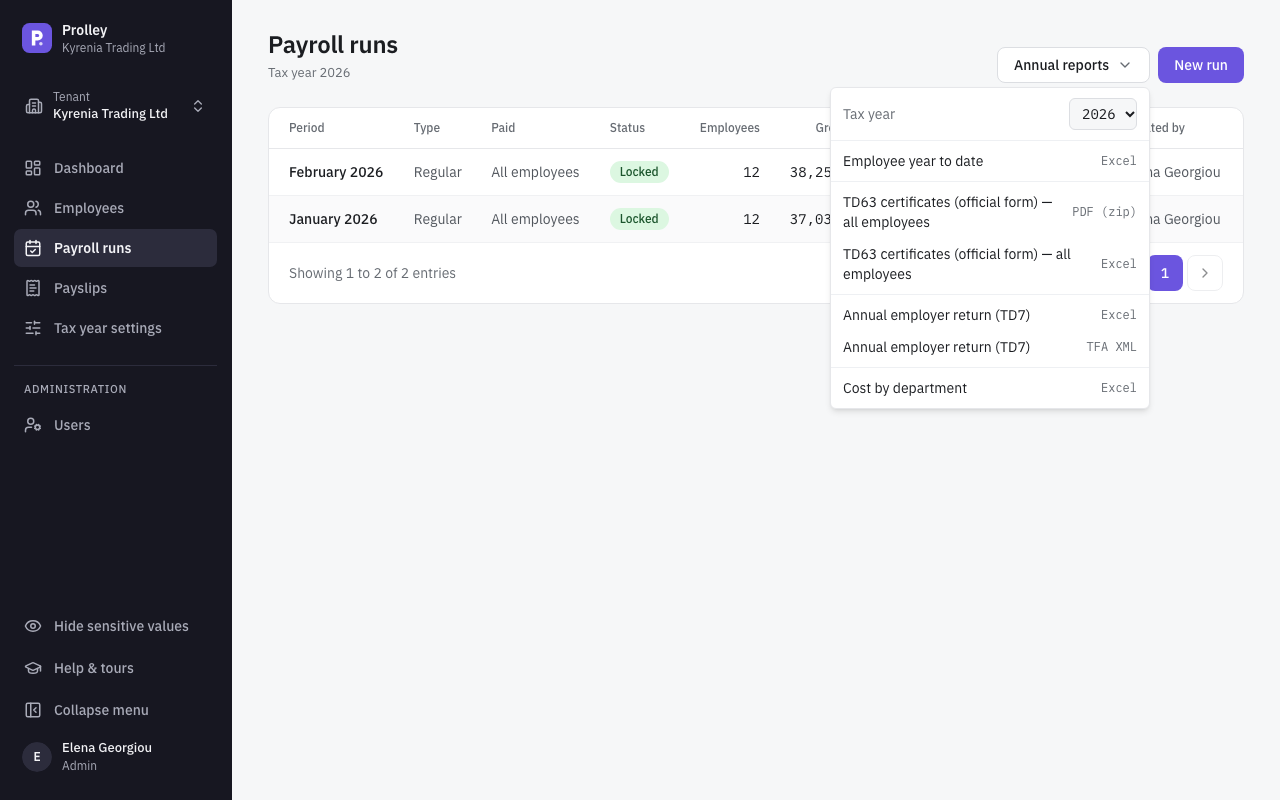
| Report | Formats | What it's for |
|---|---|---|
| Employee year to date | Excel | Each employee's totals for the year |
| TD63 certificates (official form) | PDF (zip), Excel | The annual certificate for each employee, on the Tax Department's form |
| Annual employer return (TD7) | Excel, TFA XML | Your annual employer return |
| Cost by department | Excel | Internal cost reporting |
To give one employee their TD63, open their page, go to the Payslips tab and click Download TD63 2026.