Unions, funds and other contribution schemes
Set up a trade union subscription, medical fund or pension plan, add employees to it, and see how it shows on payslips and reports.
Last updated
A contribution scheme is a regular payment on top of the statutory contributions: a trade union subscription, a medical or welfare fund, a pension or provident plan, or another levy. The employee pays it, you pay it for them, or both.
Using one takes two steps:
- Set up the scheme in your tax year settings, once. Only an Admin can do this.
- Add the employees who belong to it, on each employee's page. An Admin or Payroll manager can do this.
Prolley's 2026 settings already include two schemes: SEK, a trade union subscription of 1% of basic pay paid by the employee, and HOTEL-WF, the hotel industry welfare fund, 1% of basic pay paid by the employer. Change or remove them if they don't apply to you.
Set up a scheme
Open the schemes
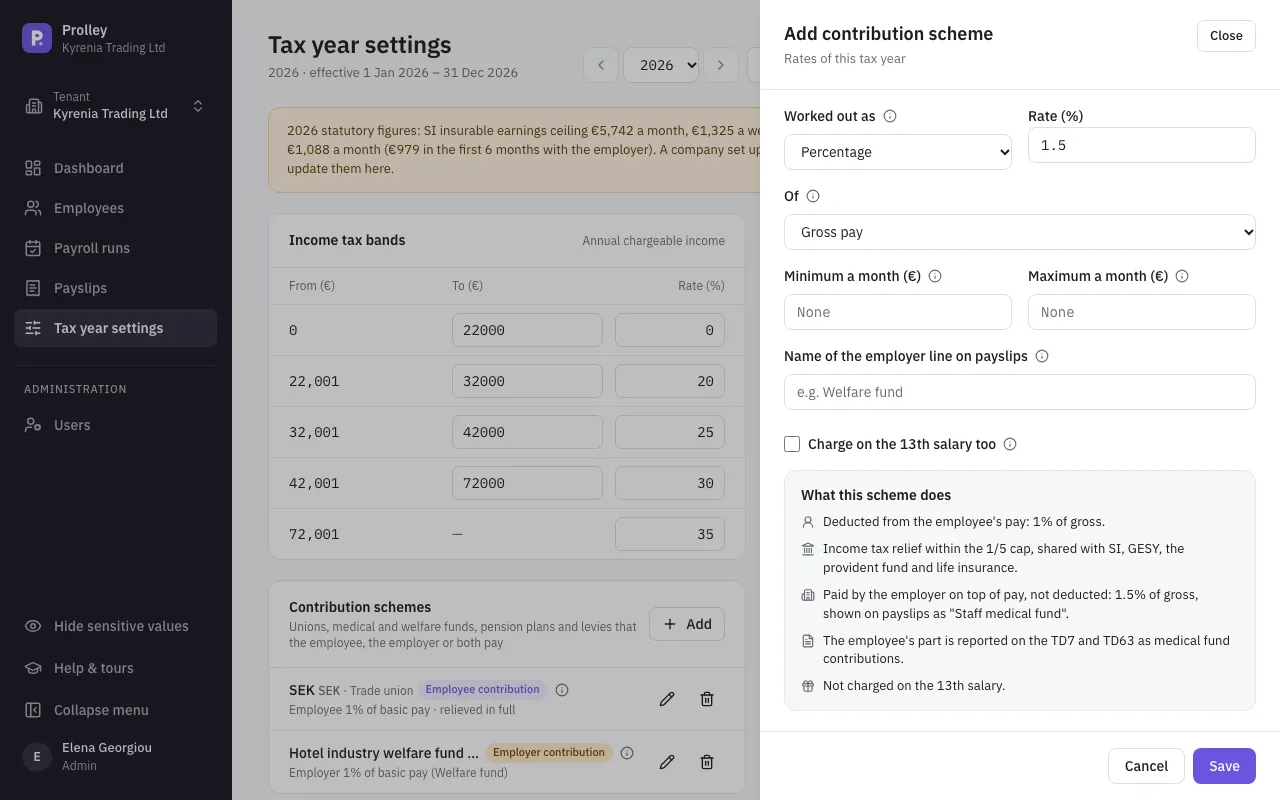
Go to Tax year settings, choose the year, and click Add on the Contribution schemes card.
Name it
Give it a short Code (letters, digits and dashes, for example SEK), shown on payslips, and a Name.
Choose the category
The Category decides where the employee's part is reported on the TD7 and TD63: Trade union, Medical or welfare fund or Pension or provident plan. Other isn't reported on the tax forms.
Say who pays and how much
Choose Who pays: Employee pays, Employer pays or Both pay. For each side that pays, choose how it's Worked out as: - a Percentage of basic pay (less unpaid days), gross pay or Social Insurance insurable earnings, with an optional Minimum a month and Maximum a month; - or a Fixed amount a month.
Finish and save
If the employee pays, choose the Income tax relief (below). For the employer's part, you can set the Name of the employer line on payslips. Tick Charge on the 13th salary too only if the scheme's rules say so. Click Save.
Every field has an ⓘ with an explanation, and What this scheme does at the end of the panel describes the scheme in plain words: what's deducted, what you pay, the tax relief and how it's reported.
Choose the income tax relief
The employee's part can reduce their taxable income. Choose what the scheme's rules allow:
| Income tax relief | What it means |
|---|---|
| Not relieved from income tax | Deducted after tax: no relief |
| Relieved within the 1/5 deductions cap | Reduces taxable income, but shares the one-fifth limit with Social Insurance, GESY, the provident fund and life insurance |
| Relieved in full, outside the cap | Reduces taxable income in full, on top of that limit, as trade union subscriptions do |
Prolley suggests the usual relief for the category, and the summary warns you if you choose something unusual.
Add employees to a scheme
Open the employee
Go to the employee's Tax & contributions tab and click Add under Contribution schemes.
Fill in the membership
Choose the Scheme and the date the membership starts in From. For a trade union, that's the date the employee signed the check-off authorisation. Add an end date in To (optional) if you know it, and the Membership number (optional).
Change the rate for this employee, if needed
To charge this employee a different rate or amount from the scheme's, enter it. Leave it empty to use the scheme's. Click Save.
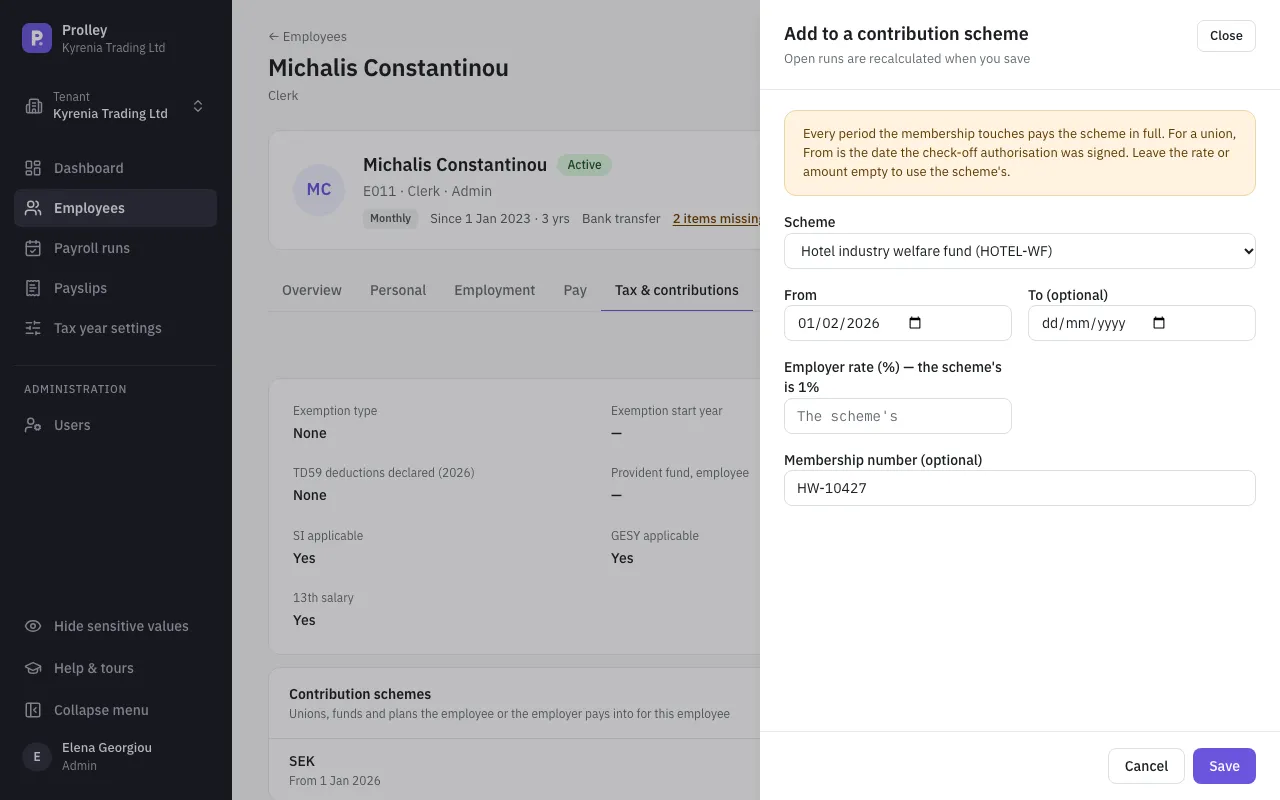
An employee can belong to several schemes, but not to the same scheme twice for the same dates. Open runs are recalculated when you save.
How it's charged
- A membership that covers any part of a month is charged for the whole month. There's no charge by the day.
- A percentage is kept between the minimum and maximum, if you set them.
- In a weekly run, fixed amounts, minimums and maximums are charged at 12/52 a week.
- Schemes never change the Social Insurance or GESY figures.
- On the 13th salary, a scheme is charged only if Charge on the 13th salary too is ticked.
On payslips and reports
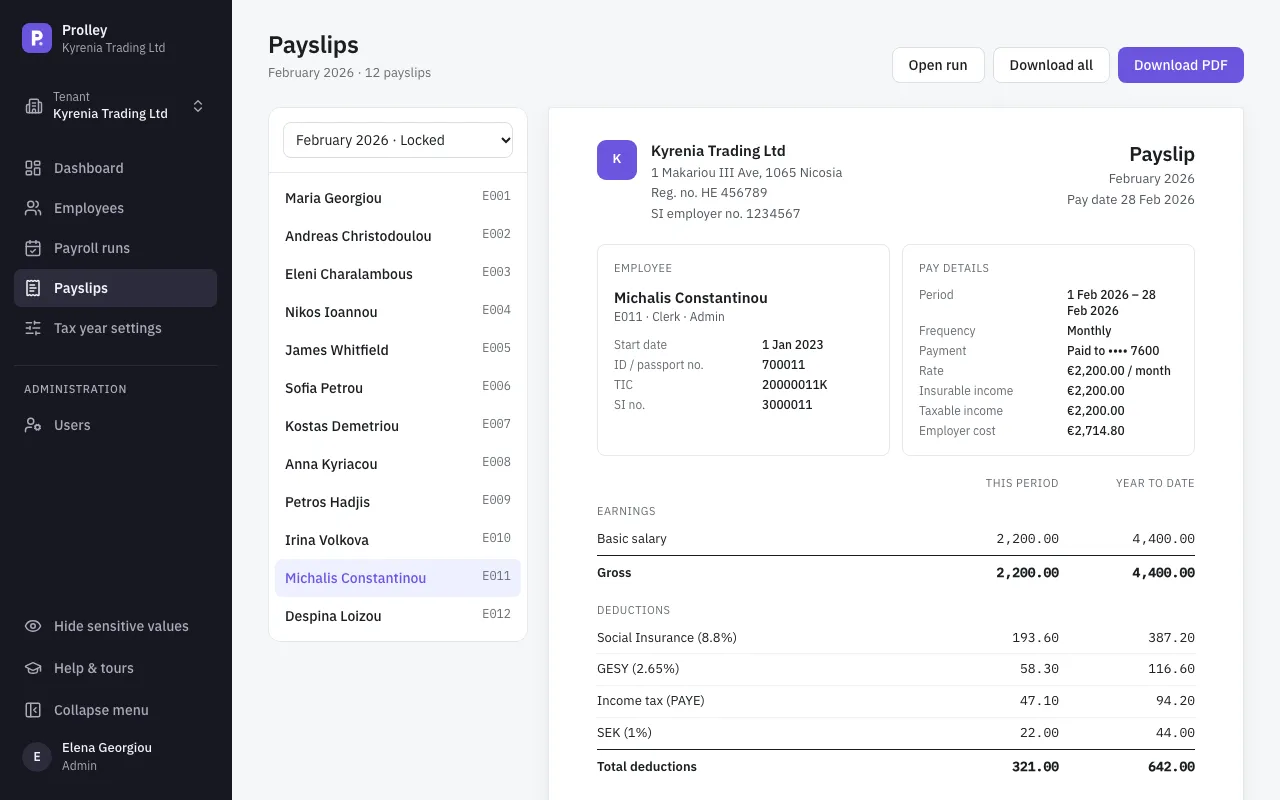
- Payslips: the employee's part is a deduction line, for example "SEK (1%)", with its year to date. Your part is listed under the employer's contributions, named as you chose.
- Contribution remittance: in a run's Export menu, this report lists each scheme's members and the total to pay each scheme, as Excel or CSV.
- TD7 and TD63: the employee's part goes in the trade union, medical fund or provident fund box, depending on the category. "Other" schemes and the employer's part aren't reported.
Change, end or remove
- The scheme's rate: edit the scheme in Tax year settings. Like any change there, it applies to open runs and creates a new version once runs have been approved.
- An employee leaves the scheme: edit their membership and set a To date. This keeps what was charged explained.
- Removing a membership recalculates open runs as if the employee had never been a member. Use it only to correct a mistake.
- Removing a scheme from the tax year stops charging its members in open runs. Approved and locked runs keep what they paid. The members' rows then say the scheme isn't in the tax year settings, and the run shows a warning.